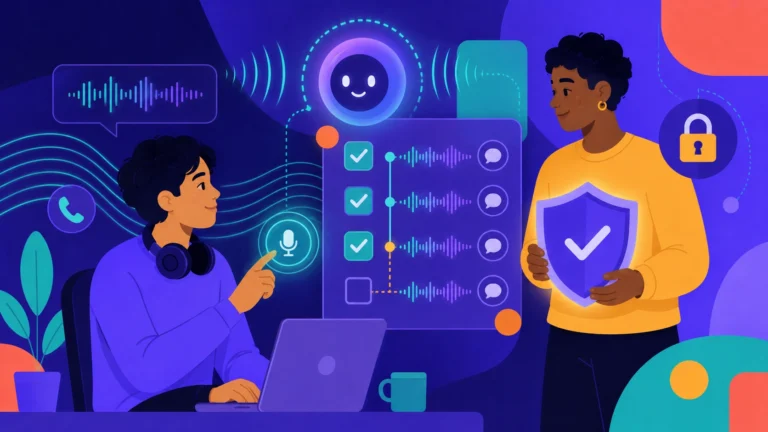
Your Voice AI agent can now transfer calls to a live support agent, create Zendesk, Freshdesk, and Salesforce tickets without custom code, and build an AI agent from an existing PRD or SOP. We’ve also added a WhatsApp chat button for websites and country-based controls for chat widget availability.
Here’s everything we shipped in October 2026 at Kommunicate.
New Features
Live agent handover for voice calls
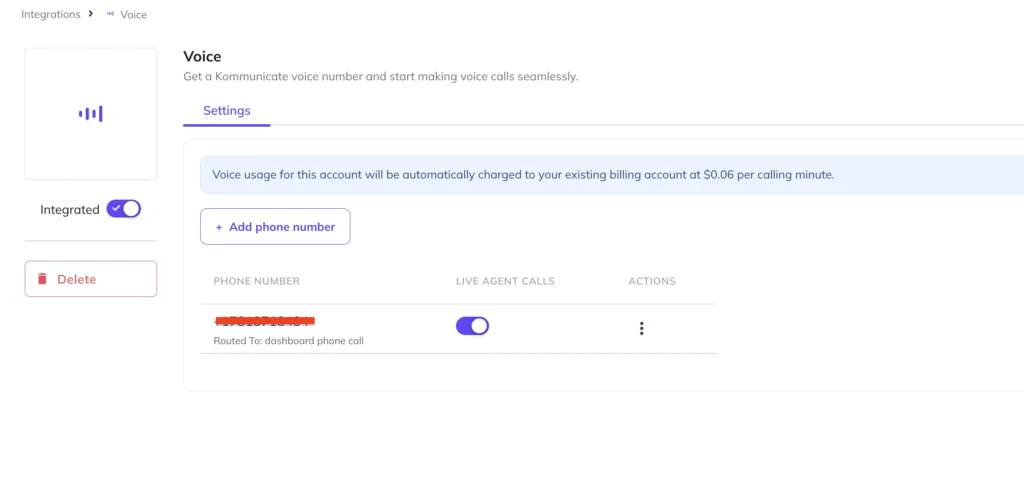
Your Voice AI agent can now transfer a phone call to a human agent, who can take the call directly from the Kommunicate dashboard.
Once live agent calls are enabled, the AI agent hands the call over whenever one of your existing handover rules is triggered. This works with:
- Intent-based handover
- Handover configured in the fallback intent
- Handover instructions added to your AI agent’s instructions
The call is routed to an available online agent, allowing the customer to continue the conversation one-to-one with that agent.
How to turn it on
- Go to Integrations and open Voice.
- Find the phone number you want to use.
- Switch on the Live Agent Calls toggle.
Create tickets in Zendesk, Freshdesk, and Salesforce from the Agent Builder
Your AI agent can now create a ticket in Zendesk, Freshdesk, or Salesforce during a conversation, without webhooks or custom code.
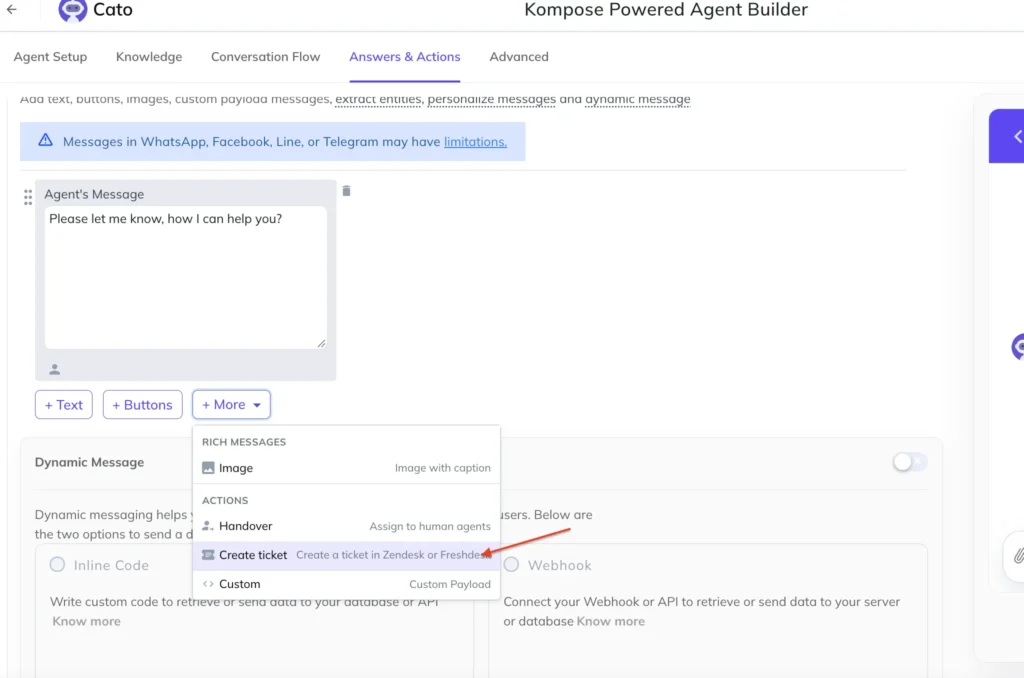
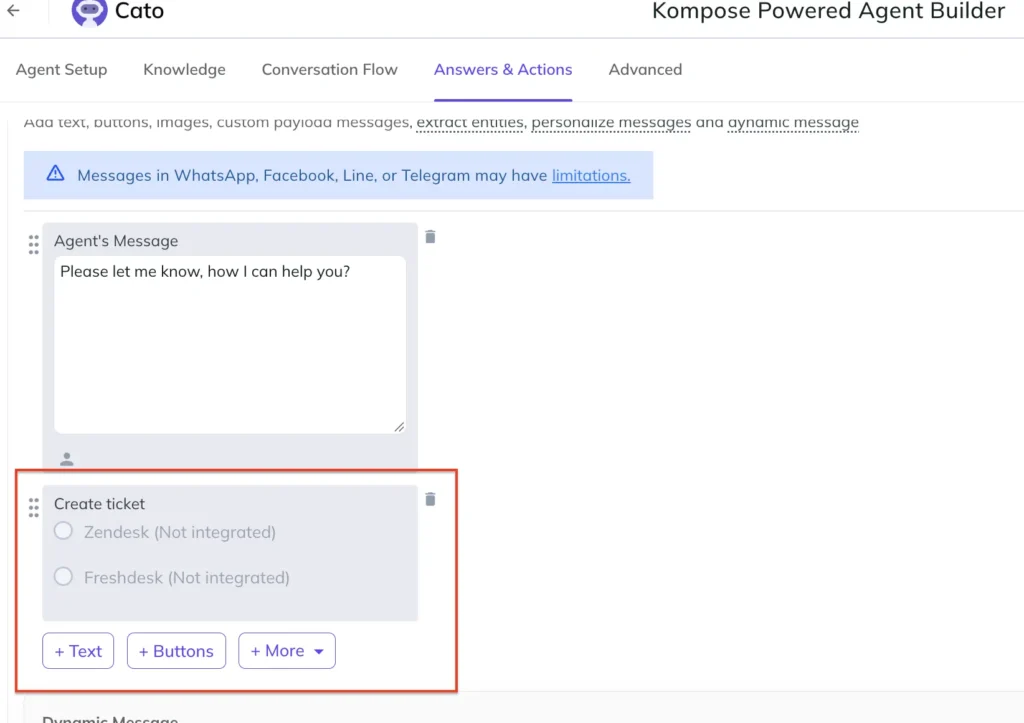
Add the Create ticket action to an answer in the Agent Builder, choose your helpdesk, and the AI agent will create a ticket whenever that answer is triggered. This is useful for issues that need follow-up from your support team, such as refund requests, bug reports, or account changes.
How to set it up
- Make sure your helpdesk is connected under Integrations.
- In the Agent Builder, open Answers & Actions and select the answer you want to use.
- Click + More and choose Create ticket.
- Select Zendesk, Freshdesk, or Salesforce, then save.
Build an AI agent from your PRD or SOP
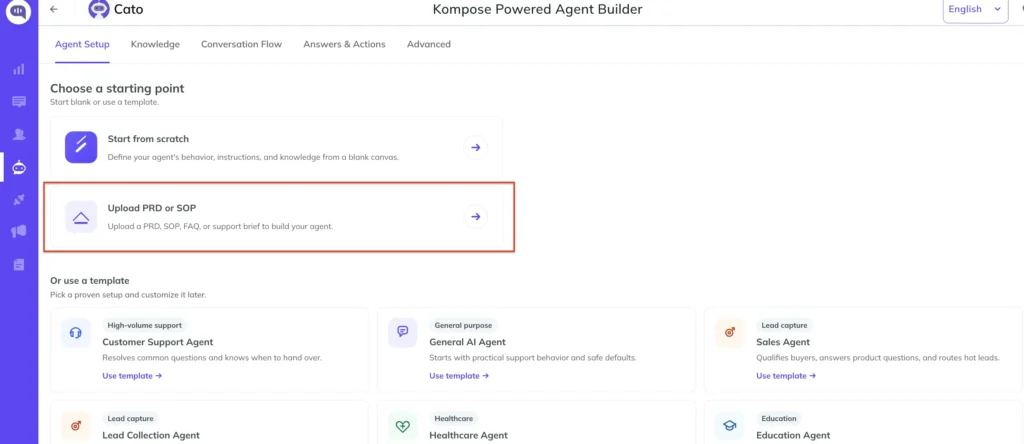
You can now create an AI agent using a document you already have. Upload a PRD or SOP document, and Kommunicate will create an AI agent based on the information it contains.
This helps you turn existing process documentation into an AI agent without rewriting everything as prompts. Review the generated agent before deploying it.
How to use it
- Open the Agent Builder and go to Agent Setup.
- Under Choose a starting point, select Upload PRD or SOP.
- Upload your document and review the agent that’s created.
WhatsApp chat button for your website
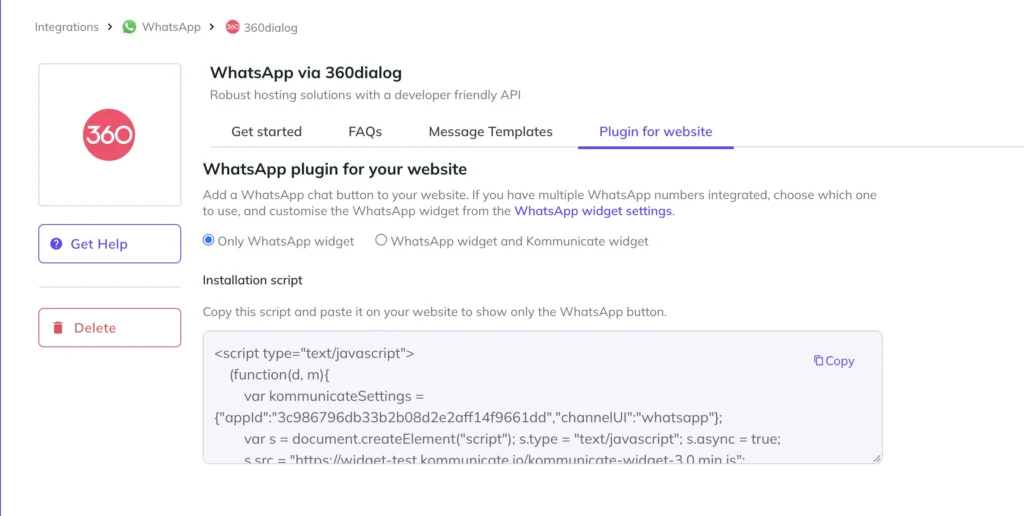
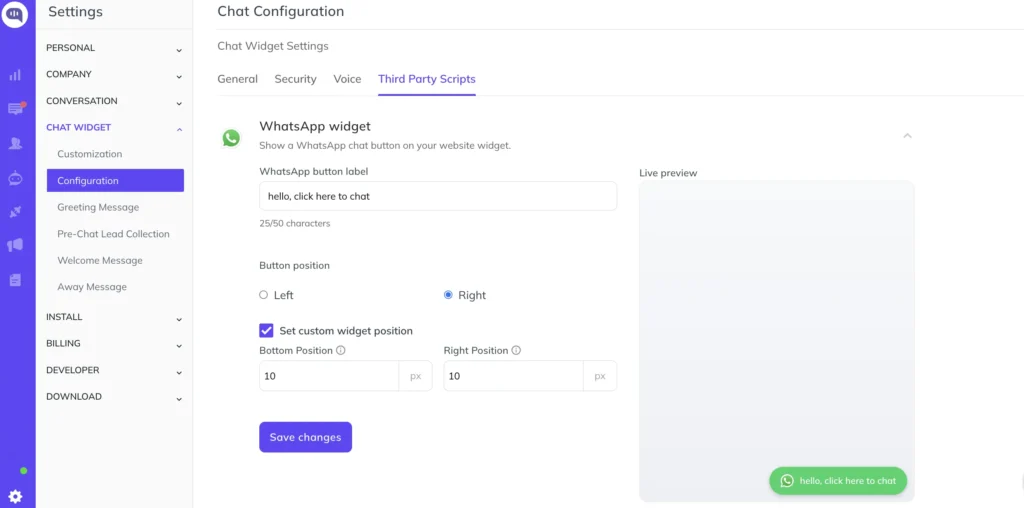
If you’ve connected a WhatsApp number to Kommunicate, you can now add a WhatsApp chat button to your website. When visitors click it, they’re taken directly to a WhatsApp chat with your connected number.
You can show the WhatsApp button on its own or alongside the Kommunicate chat widget. If you have more than one WhatsApp number connected, you can choose which one the button uses.
How to add it
- Go to Integrations, open WhatsApp, and select your WhatsApp provider.
- Open the Plugin for website tab and choose whether to show only the WhatsApp widget or both widgets.
- Copy the installation script and paste it on your website.
- To change the button label or position, go to Settings > Chat Widget > Configuration > Third Party Scripts.
Control which countries can see your chat widget
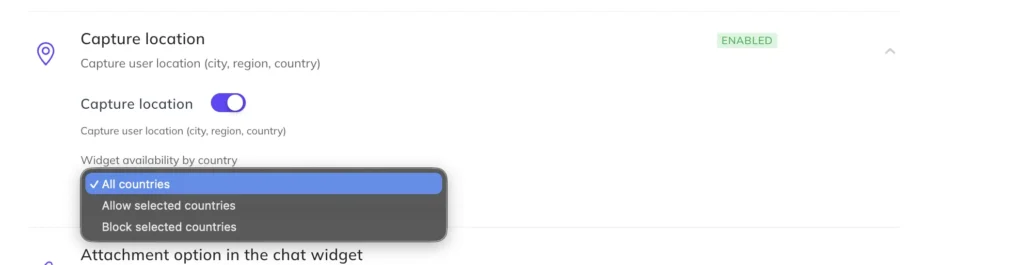
You can now decide which countries your chat widget is available in. This is useful if your business serves specific regions or you want to hide the widget from visitors in countries where you don’t operate.
Choose from three options:
- All countries: The widget is available everywhere (default).
- Allow selected countries: The widget appears only for visitors from the countries you select.
- Block selected countries: The widget is hidden for visitors from the countries you select.
How to set it up
- Go to Settings > Chat Widget > Configuration.
- Open Capture location and switch on Capture location.
- Under Widget availability by country, choose an option and select your countries.
Improvements
Videos from Freshdesk articles in AI agent responses
When your AI agent answers from a Freshdesk Knowledge Base article that contains a video, it can now include that video in its response. This helps customers get the full answer without leaving the chat.
Send conversation transcripts to Freshdesk
You can now send conversation transcripts to Freshdesk directly from the Kommunicate dashboard, giving your team the full context of each conversation inside the ticket.
Refreshed playground chat widget in the Agent Builder
We’ve refreshed the playground chat widget in the Agent Builder, making it easier to test your AI agent before going live.
Bug Fixes
- Fixed an issue where attachments were sometimes not sent.
- Fixed errors when creating, updating, and processing tickets in Zendesk.
- Fixed an issue where deleted bots could still pick up incoming Zendesk webhook events.
- Fixed a translation issue with AI agent messages.
- Fixed an application error when a missing
displayNamevalue was accessed. - Fixed an application error when a missing
datavalue was accessed.