Updated on July 2, 2026
To personalize your Kommunicate AI agent with live HubSpot data, follow these steps:
- Create an intent that asks for the visitor’s email mid-conversation, then extract it as an entity named
email. - In HubSpot, create a private app token scoped to
crm.objects.contacts.readonly. - In that intent’s inline code, call HubSpot’s contacts endpoint with
idProperty=emailto fetch the record. - Branch the reply on
lifecyclestage: customers get one tone, late-pipeline prospects get another, unrecognized emails get a graceful fallback. - Test it in Kompose’s test agent panel with a real HubSpot email before publishing.
- You can extend the same function to include a HubSpot associations call when you need deal stage or ticket history as well.
Most companies treat personalization as using a customer’s name in a reply. There’s no contextual information behind it, and no problem-solving shaped by what’s already known about that person.
A personalized AI agent uses live CRM data to change its reply in real time, based on who the visitor is and where they sit in your pipeline, instead of just dropping their name into a template.
That’s because most CRM-agent integrations are one-way. A message comes in, and the backend creates a contact in HubSpot, logs a ticket, and attaches a transcript.
To actually personalize responses, you need live CRM data. For example, if a contact named Priya from a Professional-plan account starts a conversation, there’s no reason the agent should open with the same generic “how can I help” that it gives a first-time visitor.
Kommunicate’s native HubSpot integration handles the first direction well. For the second, reaching into HubSpot mid-conversation and shaping the reply around what’s there, you need a small piece of custom logic.
Kompose’s inline code editor is built for exactly this, and the function is a short one that you can set and forget.
In this article, we’ll cover:
- What are we building?
- Native sync or inline code. What should you use?
- How will this AI agent work?
- Tutorial – How to build a personalized AI agent with HubSpot?
- Common mistakes to avoid
- Summary: personalizing your AI agent with HubSpot
What are we building?
We’re building an AI agent that can identify a known contact mid-conversation, using:
- An intent that asks for an email at the right moment
- Kompose’s built-in entity extraction to catch it
- An inline code function that looks up the contact in HubSpot
- A branch in the lifecycle stage that changes the reply
- A fallback for emails that HubSpot doesn’t recognize
The part most CRM integration guides skip is what happens after the lookup. The agent should behave differently depending on what HubSpot returns:
| HubSpot Lookup Result | Agent Behavior |
|---|---|
| Lifecycle stage: customer or evangelist | Welcomes them back, asks if it’s a support question |
| Lifecycle stage: opportunity or salesqualifiedlead | Offers to loop in their account rep |
| Lifecycle stage: lead, subscriber, or unset | Asks a qualifying question, using the job title if available |
| Email not found in HubSpot | Replies normally, continues without personalization |
First, it’s worth separating this from Kommunicate’s native HubSpot sync, since the two solve different problems, and it’s easy to reach for the wrong one.
Native sync or inline code. What should you use?
The native HubSpot integration is the right tool when the goal is getting conversation data into HubSpot:
- Creating contacts
- Attaching transcripts as notes
- Surfacing ticket status back in the thread
Inline code earns its place when a decision the agent makes mid-conversation depends on something only the CRM holds:
- Lifecycle stage
- Deal value
- Existing support history
That’s a lookup, not a sync, and it needs to resolve before the next message goes out.
| Native HubSpot Integration | Inline Code Lookup | |
|---|---|---|
| Data direction | Conversation into HubSpot | HubSpot into the conversation |
| Setup | No code | One inline code function |
| Good for | Creating contacts, tickets, and deals from chats | Shaping a reply around data that already exists |
| Runs | On conversation events, automatically | When the email is captured mid-conversation |
| Customization | Configured in the dashboard | Full control over the lookup and the branch logic |
Once you know you need the lookup path, you need to figure out how the entire workflow comes together.
How will this AI agent work?
There are usually three methods to personalize replies:
- Using pre-chat form fields
- Using chat context passed in from the install script
- Conversation metadata updated mid-session.
All three assume the visitor’s details are already known before personalization is needed.
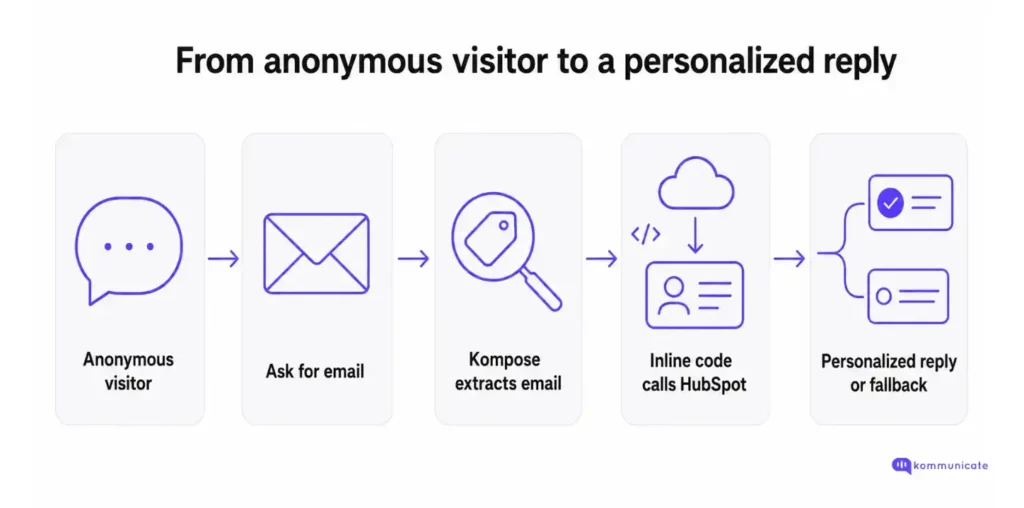
This tutorial uses a different method: extracting a value from whatever the visitor types, then using it to drive a live lookup instead of just inserting a value that was already passed in. This works as follows:
- A visitor starts chatting without being identified.
- At some point, when personalization would actually change the response, the agent asks for an email address.
- Kompose’s built-in email entity extraction catches it from whatever the visitor types, however they phrase it, and passes it to an inline code function as a parameter.
- That function calls HubSpot, and the conversation branches.
Setting that up requires two components on the Kompose side: an intent that extracts the email and its inline code.
Now, let’s get started with the tutorial.
Tutorial – How to build a personalized AI agent with HubSpot?
1. Setting up entity extraction in Kompose
If you haven’t built a Kompose agent before, your first Kompose AI agent covers how to create the agent and its first few intents. We’re going to use a similar build here:
- Navigate to Agent Integrations and select Create AI agent.
- Select Kompose from the list of models given (you can select another model later).
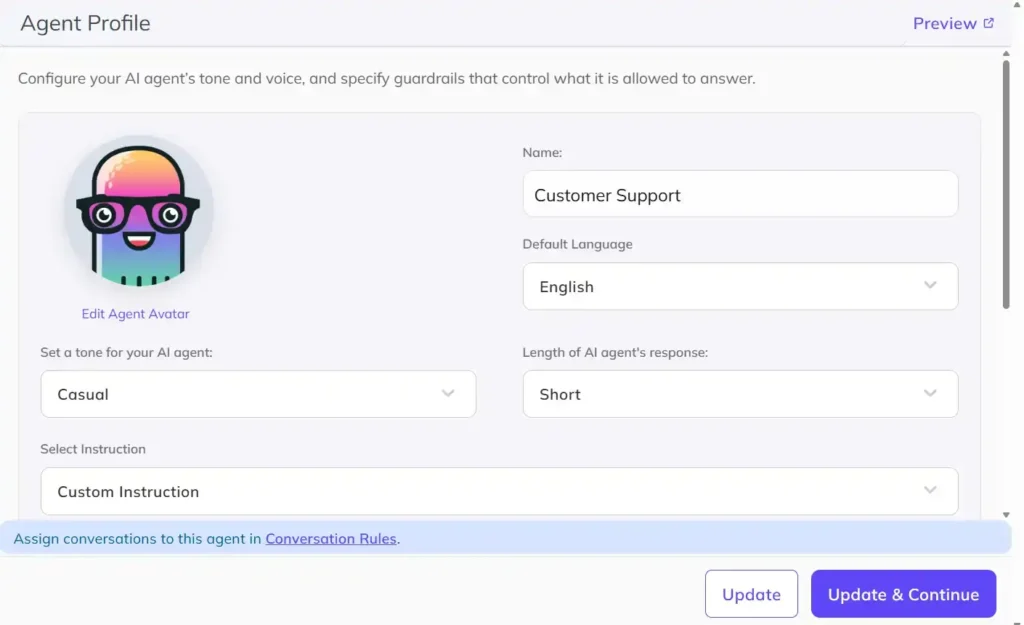
- Set up your Agent Profile in the first window. We’re using a generic name and keeping the tone casual.
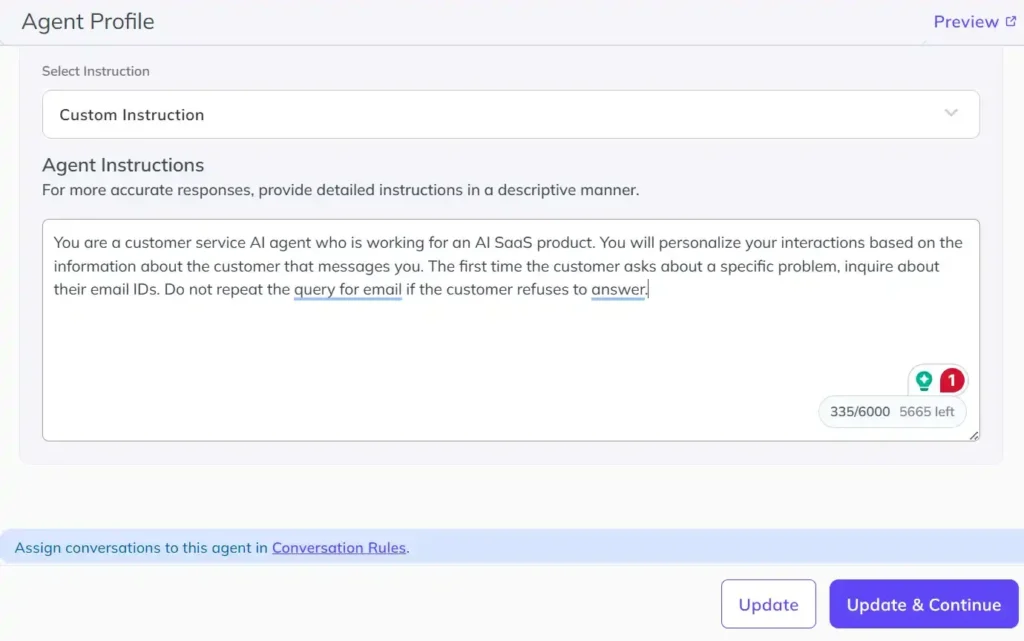
- In the Custom Instruction section, we’ll put in a simple prompt so that the AI agent asks for an email address when the customer is inquiring: “You are a customer service AI agent who is working for an AI SaaS product. You will personalize your interactions based on the information about the customer that messages you. The first time the customer asks about a specific problem, inquire about their email address. Do not repeat the request for the email if the customer declines to share it.”
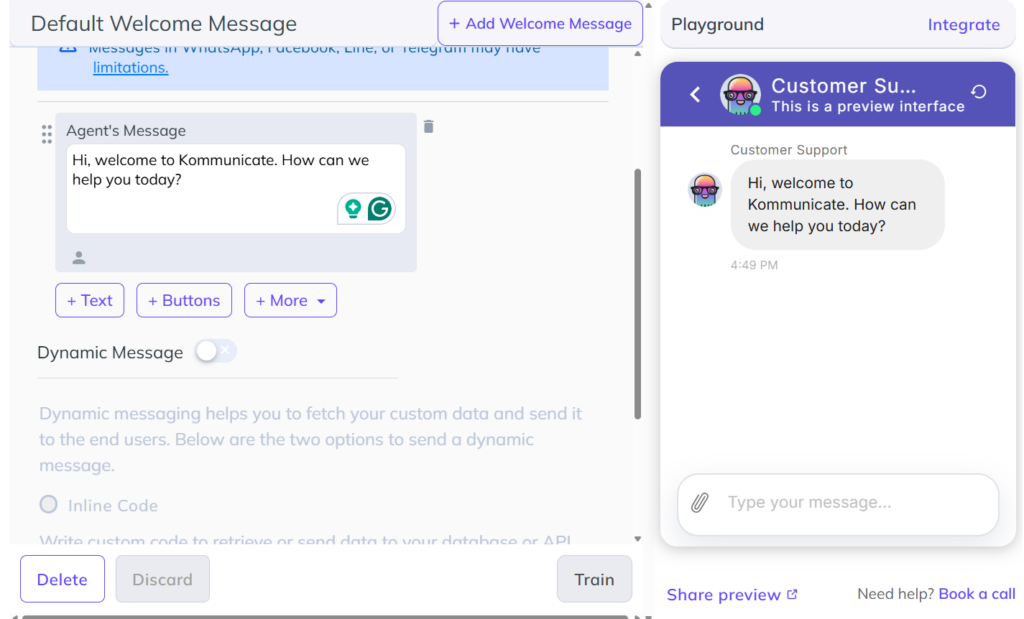
- In the Welcome message section, we’ll use, “Hi, welcome to Kommunicate. How can we help you today?” To save it, we will click on Train.
The custom instruction tells the agent when to ask for the email. The intent you build next is what actually captures and extracts that email so the inline code can use it.
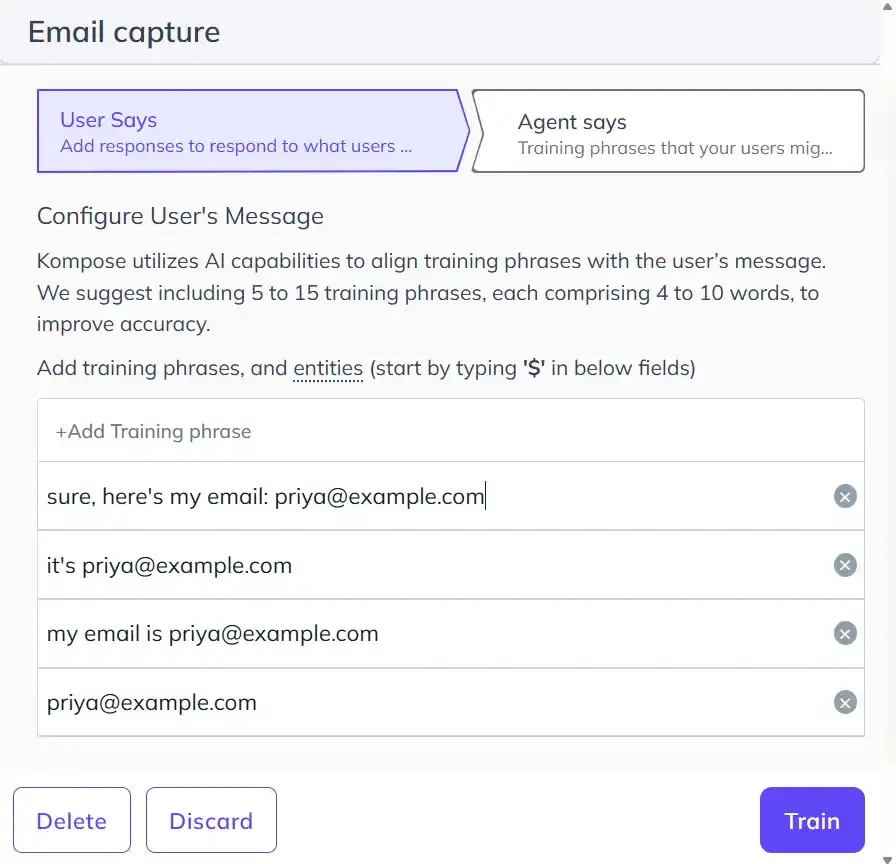
- Move to Intents (Q&A) to create the email capture intent. Add in phrases that we’ve shown above in the User says section (this doesn’t need to cover every variant; Kompose’s NLU is built to understand different phrasing).
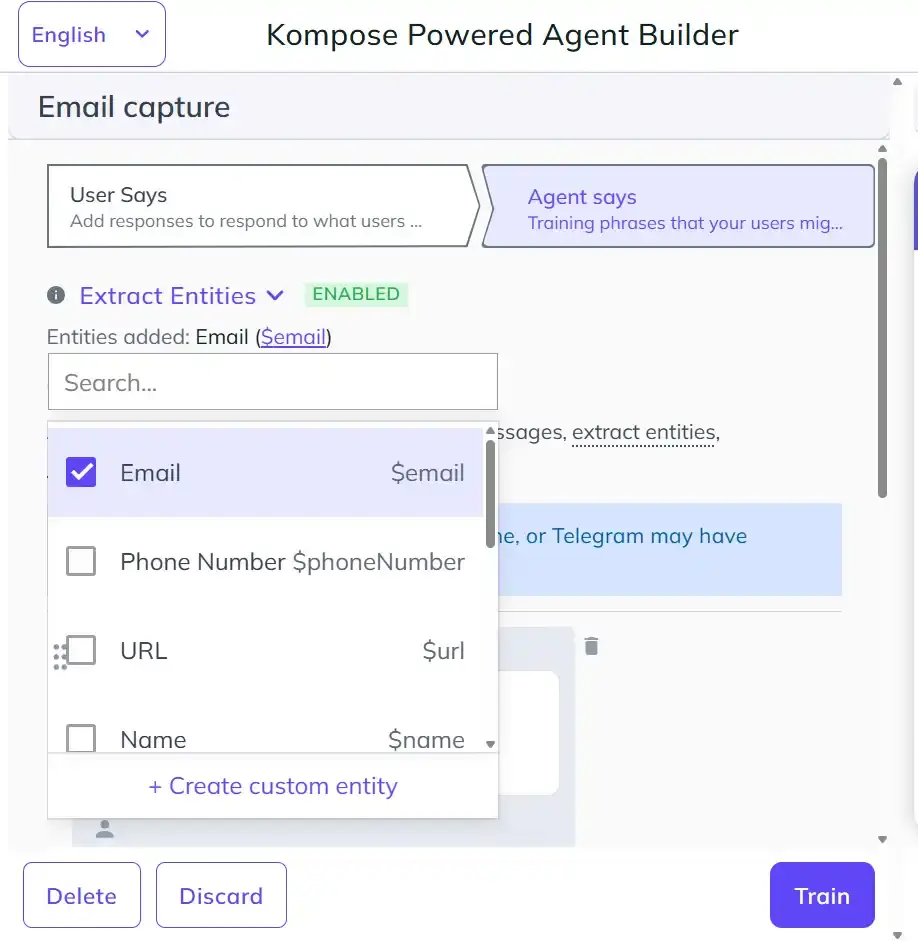
- In the Agent says section, enable Extract Entities and choose Email.
- After you’ve done this, scroll below and enable Dynamic Message and select inline code.
Now, we are going to build the lookup section that fetches data from HubSpot.
2. Setting up the Inline Code
Kompose’s inline code runs in a sandboxed Node environment with axios available globally. The function signature is fixed: an exported responseHandler that takes the message payload (input) and a callback you call exactly once with the reply.
The lookup itself uses HubSpot’s CRM v3 contacts endpoint with idProperty=email, which fetches a record by email address rather than by its internal record ID. Authentication is a private app access token, since HubSpot retired the old API key model, sent as a standard bearer header. The full reference is in HubSpot’s contacts API if you want the underlying detail.
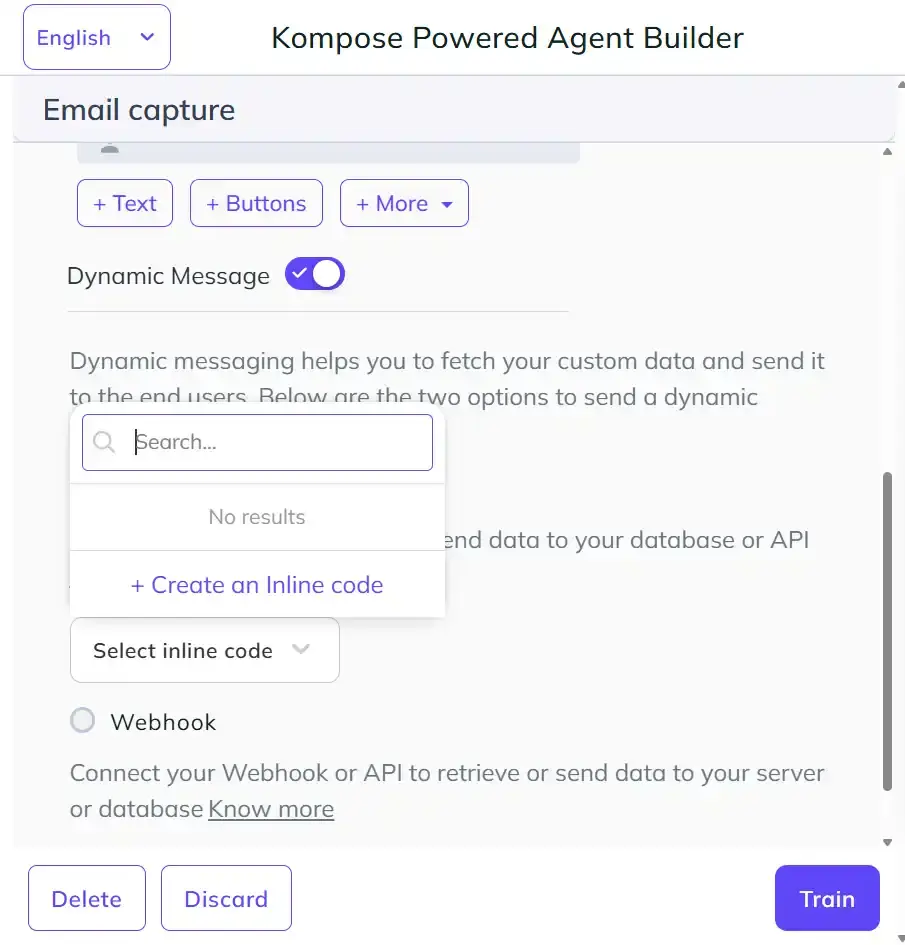
- After enabling Dynamic Message and clicking on Inline code, click on Create an Inline code.
- Create an inline code snippet called HubSpot Look-Up and enter the following code:
| exports.responseHandler = async (input, callback) => { // Private app access token, scoped to crm.objects.contacts.read only. const HUBSPOT_TOKEN = “YOUR_PRIVATE_APP_ACCESS_TOKEN”; const extractEmailFromText = (text) => { const match = (text || “”).match(/[\w.+-]+@[\w-]+\.[\w.-]+/); return match ? match[0] : null; }; try { const email = input.parameters?.email || extractEmailFromText(input.message); if (!email) { callback([{ message: “I didn’t quite catch a valid email there, mind sharing it again?” }]); return; } const properties = “firstname,lastname,company,jobtitle,lifecyclestage,hs_lead_status”; const url = `https://api.hubapi.com/crm/v3/objects/contacts/${encodeURIComponent(email)}?idProperty=email&properties=${properties}`; const hsResponse = await axios.get(url, { headers: { Authorization: `Bearer ${HUBSPOT_TOKEN}` } }); const props = hsResponse.data.properties || {}; const firstName = props.firstname || “”; const company = props.company || “”; const jobTitle = props.jobtitle || “”; const lifecycleStage = (props.lifecyclestage || “”).toLowerCase(); const namePart = firstName ? `Hi ${firstName}` : “Hey there”; const companyPart = company ? `from ${company}` : “”; const greeting = [namePart, companyPart].filter(Boolean).join(” “) + “!”; const isCustomer = [“customer”, “evangelist”].includes(lifecycleStage); const isLatePipeline = [“opportunity”, “salesqualifiedlead”].includes(lifecycleStage); let followUp; if (isCustomer) { followUp = “Welcome back! Are you reaching out about a support question, or something else?”; } else if (isLatePipeline) { followUp = “Thanks for staying in touch, want me to loop in your account rep, or can I help directly?”; } else if (jobTitle) { followUp = `As a ${jobTitle}, what brought you here today, are you exploring how Kommunicate could fit your team?`; } else { followUp = “What brought you here today, are you exploring how Kommunicate could fit your team?”; } callback([{ message: `${greeting} ${followUp}` }]); } catch (error) { if (error.response?.status === 404) { callback([{ message: “Thanks! I don’t see that email on file yet, no worries, what can I help you with?” }]); return; } callback([{ message: “Thanks for that, let’s continue, what can I help you with today?” }]); } }; |
A couple of details worth understanding rather than just copying. The extractEmailFromText regex is a fallback, not the primary path: entity extraction occasionally misses unusual phrasing, and this catches what slips through. The idProperty=email query parameter is what lets the URL use an email address instead of HubSpot’s internal record ID.
To test it, open Kompose’s test agent panel and reply with an email that exists in the connected HubSpot portal. You should see the personalized greeting come back, along with a graceful fallback for an email HubSpot doesn’t recognize.
A few things in that function are easy to get wrong if you’re moving fast. Here’s what to watch for.
Common mistakes to avoid
| Mistake | Better Approach |
|---|---|
| Private app token with full read and write access | Scope it to crm.objects.contacts.read only |
| Looking up HubSpot on every message in the conversation | Look up once, when the email is first captured |
| Hardcoding hs_lead_status values from a different portal | Check your own portal’s lead status options first |
| Pre-chat gating just to capture an email | Ask for it only when personalization would change the reply |
| Treating a 404 as something broken | Treat it as an expected case, and reply gracefully |
The table above covers the scope. Two more things worth knowing about that token specifically.
- It lives in plain text inside the inline code editor, which is fine as long as it stays in Kompose. The risk shows up if the agent is ever exported as a JSON or CSV backup: the token travels with it, in plain text, inside that file. If that export is ever shared outside the team that manages the agent, rotating the token afterward is mandatory.
- Private app tokens are fine for a single HubSpot account, and HubSpot supports Bearer-token authentication for private app access tokens. But for a multi-customer/Marketplace-style integration, HubSpot recommends using OAuth instead.
- Rate limits aren’t a real concern at the volume this runs at. A single GET-by-email lookup per conversation is nowhere near what a private app token allows, even on the lower end of HubSpot’s plans. It only becomes relevant if the same inline code starts getting called on every message rather than once when the email is first captured, which the mistakes table above already steers you away from.
Summary: personalizing your AI agent with HubSpot
None of this requires abandoning the no-code builder. The agent is still built visually, intents, entities and all. The only custom part is a single function that bridges Kompose’s flow with a live CRM lookup.
On a high level, that’s four things:
- Ask for an email when personalization would change the reply
- Extract it and hand it to an inline code function
- Look up the contact in HubSpot and branch on the lifecycle stage
- Fall back gracefully when there’s no match
The same pattern extends cleanly if you need more than contact properties. Pulling in the deal stage or open ticket history is one more call to HubSpot’s associations API, slotted in right after the contact lookup succeeds, not a rewrite.
If you want this kind of CRM-aware personalization without writing the lookup yourself, book a demo, and we’ll show you what’s already built in. Or sign up for free and wire this exact function into your own Kompose agent today.
FAQs
Yes. Using Kompose’s inline code, the agent looks up a contact by email in HubSpot mid-conversation and changes its reply based on the contact’s lifecycle stage.
Almost none. The agent is still built no-code in Kompose. Only one small inline code function handles the HubSpot lookup.
A private app access token scoped to crm.objects.contacts.read. HubSpot retired the old API key model, so private app tokens sent as a Bearer header are the current method.
The function treats the 404 as an expected case and replies normally, without personalization.
Native sync pushes conversation data into HubSpot (contacts, tickets, transcripts). Inline code pulls HubSpot data into the conversation to shape the reply.

Devashish Mamgain is the CEO & Co-Founder of Kommunicate, with 15+ years of experience in building exceptional AI and chat-based products. He believes the future is human and bot working together and complementing each other.