Updated on June 3, 2026
TL;DR
- Create an AI agent in Kommunicate using the Kompose AI agent builder with OpenAI as the underlying model
- Configure intents, a welcome message, and human handoff inside Kompose
- Build a Node.js webhook server that powers four specific intents: order status, refund requests, shipping policy, and human handoff
- Connect each Kompose intent to its corresponding Node.js webhook
- Run the server, and your AI-powered customer service agent is live
Customer expectations have fundamentally shifted. Shoppers expect instant, intelligent responses at 2 AM on a Sunday just as much as during business hours. A customer service AI agent running on OpenAI can meet that bar, but only if you wire it correctly.
This tutorial shows you how to build a customer service AI agent using OpenAI and Kommunicate’s Kompose AI agent builder, with Node.js powering the dynamic responses behind your most important intents.
We’re dividing the tasks like this:
- Kompose handles the AI logic, welcome flow, and human handoff.
- Node.js handles the structured, policy-backed responses for specific customer queries.
- The Kommunicate widget connects your customers to the agent.
Let’s start building:
- Why use Kompose + OpenAI + Node.js?
- Pre-requisites
- Build webhooks with Node.js
- Build an AI agent with Kommunicate
- Connect the AI agent with Node.js
- Parting thoughts
Why use Kommunicate + OpenAI + Node.js?
Each piece of this stack has a clear job:
- Kompose is Kommunicate‘s no-code agent builder. It lets you define intents, set a welcome message, configure fallback behavior, and wire up human handoff from a GUI, with no backend code.
- OpenAI powers the AI layer inside Kompose. Once you set GPT-5-mini as your agent’s model, every conversation benefits from OpenAI’s reasoning and language understanding without you having to manage prompts or API calls directly.
- Node.js powers the webhook backend behind specific intents. When a customer triggers an order status, refund, shipping, or handoff intent, Kompose calls your Node.js server, which returns a structured, policy-backed response.
The result is an AI agent that’s live in under an hour, with production-grade features like:
- Session management
- Conversation history
- Human escalation
- Dynamic Node.js responses exactly where you need them.
Now, before we start building the AI agent, we’ll need to set up a few prerequisites. Here’s what we recommend.
Pre-requisites
Before you begin, make sure you have:
- Basic knowledge of Node.js and JavaScript
- Node.js installed (v18 or later recommended)
- npm installed
- A code editor (VS Code recommended)
- A Kommunicate account — sign up free here
Once the packages are installed, we can start building the AI agent.
Build webhooks with Node.js
We’re going to use Node.js to power two intents that need dynamic, structured responses:
- Order status
- Refund requests
When a customer triggers one of these intents in Kompose, Kommunicate will call your Node.js webhook and deliver the response through the widget.
Step 1: Initialize the Node.js project
1. Create a new project directory and install the dependencies:
| mkdir customer-service-webhooks cd customer-service-webhooks npm init -y npm install express dotenv |
2. Create a .env file:
| PORT=3000 |
3. Open package.json and add “type”: “module” so ES module import syntax works:
| { “name”: “customer-service-webhooks”, “version”: “1.0.0”, “type”: “module”, “scripts”: { “start”: “node server.js” }, “dependencies”: { “dotenv”: “^16.0.0”, “express”: “^4.18.0” } } |
Step 2: Create the webhook handlers
Each intent gets its own webhook endpoint. Kommunicate sends a POST request to the endpoint when the intent is triggered and expects an array of message objects back: [{ “message”: “…” }].
1. Create server.js:
| app.post(‘/webhook/order-status’, async (req, res) => { try { const { from, message } = req.body; // Example: extract order number from customer message // e.g. “Track order #12345” const orderNumberMatch = message?.match(/\d+/); const orderNumber = orderNumberMatch?.[0]; // If no order number found, ask for it if (!orderNumber) { return res.json([ { message: ‘I can help you track your order. Please share your order number (for example: #12345).’, }, ]); } // ————————————————— // Replace this section with your real database/API call // Example: fetch order details from Shopify, OMS, DB, etc. // ————————————————— const mockOrder = { orderNumber, status: ‘Shipped’, courier: ‘BlueDart’, trackingId: ‘BD987654321’, estimatedDelivery: ‘May 28, 2026’, }; // If order is not found if (!mockOrder) { return res.json([ { message: `Sorry, I couldn’t find an order with number #${orderNumber}. ` + ‘Please double-check the number and try again.’, }, ]); } // Return tracking information return res.json([ { message: `📦 Order #${mockOrder.orderNumber}\n\n` + `Status: ${mockOrder.status}\n` + `Courier: ${mockOrder.courier}\n` + `Tracking ID: ${mockOrder.trackingId}\n` + `Estimated delivery: ${mockOrder.estimatedDelivery}\n\n` + `You’ll receive updates if there are any shipping changes.`, }, ]); } catch (error) { console.error(‘Order status error:’, error); return res.status(500).json([ { message: ‘Sorry, I’m unable to fetch your order details right now. Please try again in a few minutes.’, }, ]); } }); app.post(‘/webhook/refund-request’, async (req, res) => { try { const { message } = req.body; // Extract order number from customer message // e.g. “I want a refund for order #12345” const orderNumberMatch = message?.match(/\d+/); const orderNumber = orderNumberMatch?.[0]; // If no order number found, ask for it if (!orderNumber) { return res.json([ { message: ‘I can help you with a refund or return. Could you share your order number? ‘ + ‘You can find it in your confirmation email (for example: #12345).’, }, ]); } // ————————————————— // Replace this section with your real database/API call // Example: fetch order details from Shopify, OMS, DB, etc. // ————————————————— const mockOrder = { orderNumber, status: ‘Delivered’, deliveredOn: ‘May 10, 2026’, eligibleForRefund: true, refundDeadline: ‘June 9, 2026’, }; // If order is not found if (!mockOrder) { return res.json([ { message: `Sorry, I couldn’t find an order with number #${orderNumber}. ` + ‘Please double-check the number and try again.’, }, ]); } // If order is outside the 30-day refund window if (!mockOrder.eligibleForRefund) { return res.json([ { message: `Order #${mockOrder.orderNumber} was delivered on ${mockOrder.deliveredOn}. ` + ‘Unfortunately, it falls outside our 30-day return window and is no longer eligible for a refund. ‘ + ‘If you believe this is an error, I can connect you with a human agent.’, }, ]); } // Order is eligible — confirm and prompt next step return res.json([ { message: `✅ Order #${mockOrder.orderNumber} is eligible for a refund.\n\n` + `Delivered on: ${mockOrder.deliveredOn}\n` + `Refund deadline: ${mockOrder.refundDeadline}\n\n` + ‘To complete your return, please reply with a brief reason (for example: damaged, wrong item, or changed my mind). ‘ + ‘A human agent will then confirm the next steps.’, }, ]); } catch (error) { console.error(‘Refund request error:’, error); return res.status(500).json([ { message: “Sorry, I’m unable to process your refund request right now. Please try again in a few minutes.”, }, ]); } }); |
A few things to note:
- Every endpoint returns [{ message: “…” }] — the array format Kommunicate requires. A plain object will be silently ignored.
- The WELCOME event is sent when a customer opens a new conversation. Handle it in each endpoint so the first message is never blank.
- The from field in the request payload carries the user ID. In production, use it to look up order data, account details, or entitlements from your database.
- The KM_ASSIGN_TO metadata in the handoff intent tells Kommunicate to route the conversation to a human agent. Leave the value empty to follow your dashboard routing rules, or set it to a specific agent’s user ID.
Step 3: Expose your server and connect the intents in Kompose
1. Your Node.js server needs a publicly accessible URL so Kommunicate can POST to it. For local development, use ngrok:
| npx ngrok http 3000 |
2. ngrok gives you a public URL like https://abc123.ngrok.io. Keep this running.
Build an AI agent with Kommunicate
Step 1: Create an AI agent in Kompose
1. Log into your Kommunicate Dashboard and go to Agent Integration in the left sidebar.
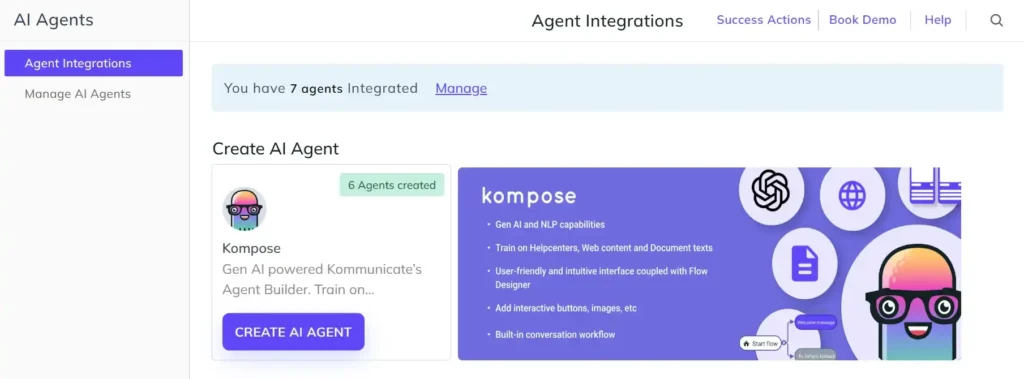
2. Click Kompose -> Create AI Agent from the list of options.
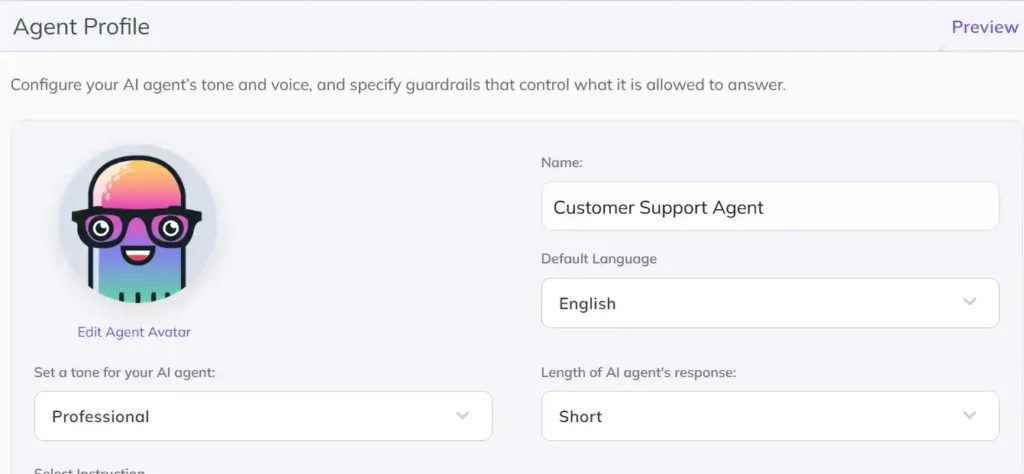
3. Define the Agent Profile. Give your AI agent a name, choose their default language, tone, and response length.
4. Under Custom Instructions, you can give instructions to your AI agent. We’re giving the following instructions:
“You are a friendly and knowledgeable customer service agent. Help customers with product questions, order issues, returns, and general inquiries. Be concise, empathetic, and professional. If you cannot resolve something, let the customer know a human agent will follow up.”
5. Click Save and Continue.
Step 2: Set OpenAI as the AI model
By default, Kompose uses the best model for the customer questions:
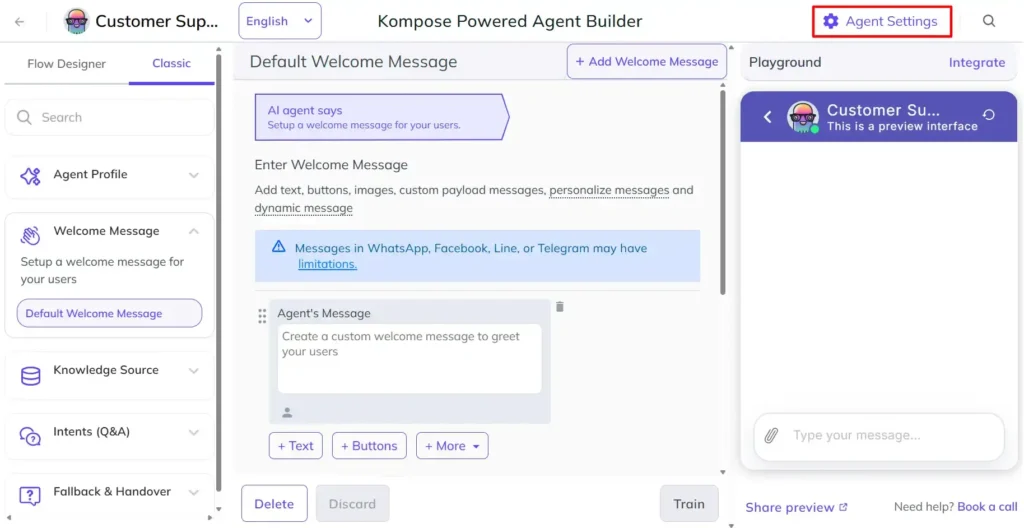
1. Inside the Agent Builder, click the Agent Settings icon (top-right corner of the page).
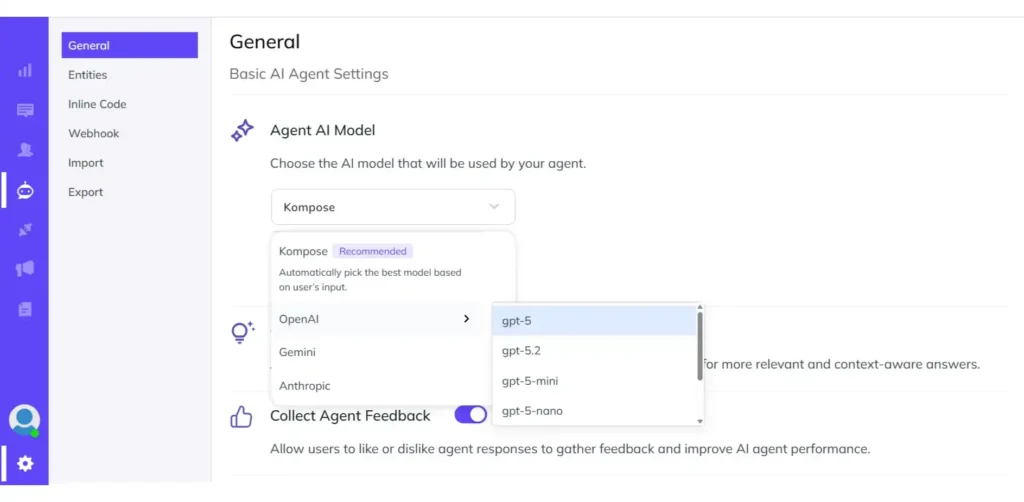
2. Select OpenAI from the list of available Agent AI models.
3. Set the model to GPT-5-mini for fast, cost-efficient responses. The following models are available:
- GPT-5
- GPT-5.2
- GPT-5-mini
- GPT-5-nano
- GPT-4o
- GPT-4o-mini
4. Select the Temperature (default is 0) and Maximum Tokens (default is 4000) and click Save.
Step 3: Configure the welcome message
Intents are the building blocks of your Kompose agent. Each intent defines a set of phrases a user might say and the response the agent should give.
1. In the agent builder, click on Welcome Message.
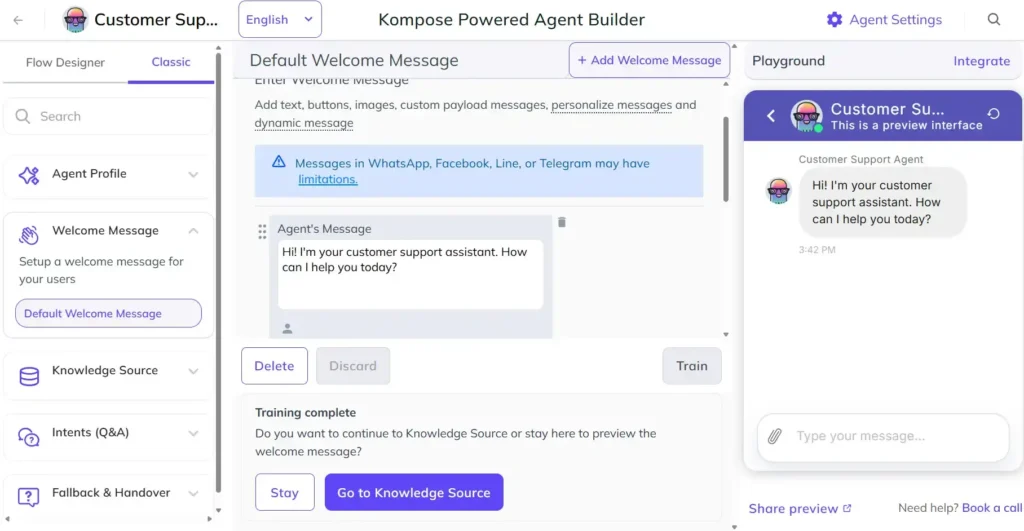
2. In the AI Agent Says section, add a greeting. For example: “Hi! I’m your customer support assistant. How can I help you today?”
3. Click Train to save the intent.
Step 4: Add Knowledge Sources
1. After you train the AI agent to say theWelcome Message, go to the Knowledge Sources section.
2. Here you can add the Knowledge sources you want to train on. There are three types of options available:
- URLs (Your website or helpdesk)
- Docs (PDFs, CSVs, Excel sheets, Word documents, and TXT)
- Knowledge bases (Directly connect to Zendesk or Salesforce Knowledge Base)
3. Since this tutorial is mainly about OpenAI and Node.js, we’re not adding any knowledge sources here. Check out our article about how to create a customer service AI agent to see how you can use the different types of sources.
Step 5: Enable human handoff
When the agent can’t resolve a query, it should hand the conversation to a human rather than leave the customer stuck.
1. In the Agent builder, go to Fallback & Handover.
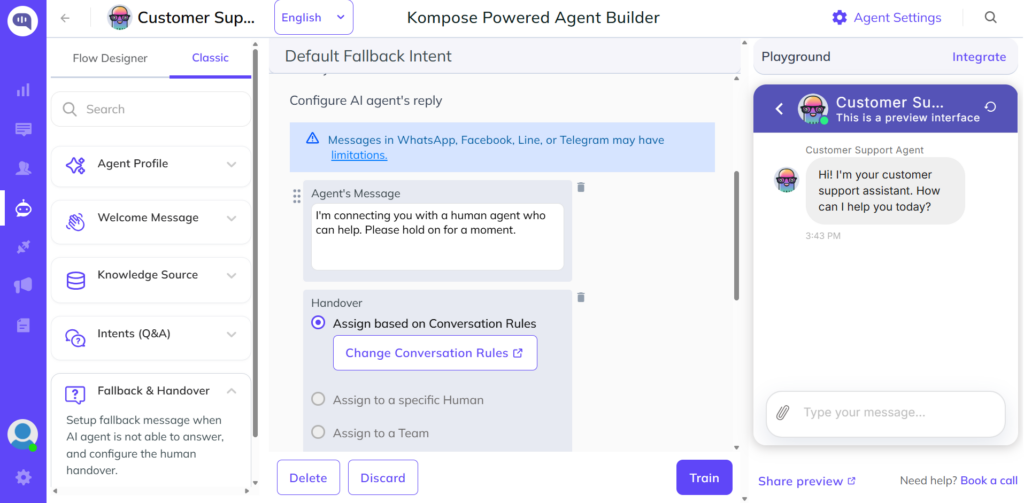
2. In Agent Says, click More and select Handover.
3. Kommunicate will add a handoff action. The agent will automatically route unresolved conversations to an available human agent based on the conversation rules you’ve set in your dashboard.
4. Add a message the customer sees during handoff. For example: “I’m connecting you with a human agent who can help. Please hold on for a moment.”
5. Click Train.
You’ve now trained a customer service AI agent with OpenAI. In the next step, we’ll add the webhooks that you’ve configured in Node.js.
Connect the AI agent to the backend
Now, we’ll create specific intents that will be able to pull the data from your backend using webhooks:
Step 1: Create an order intent
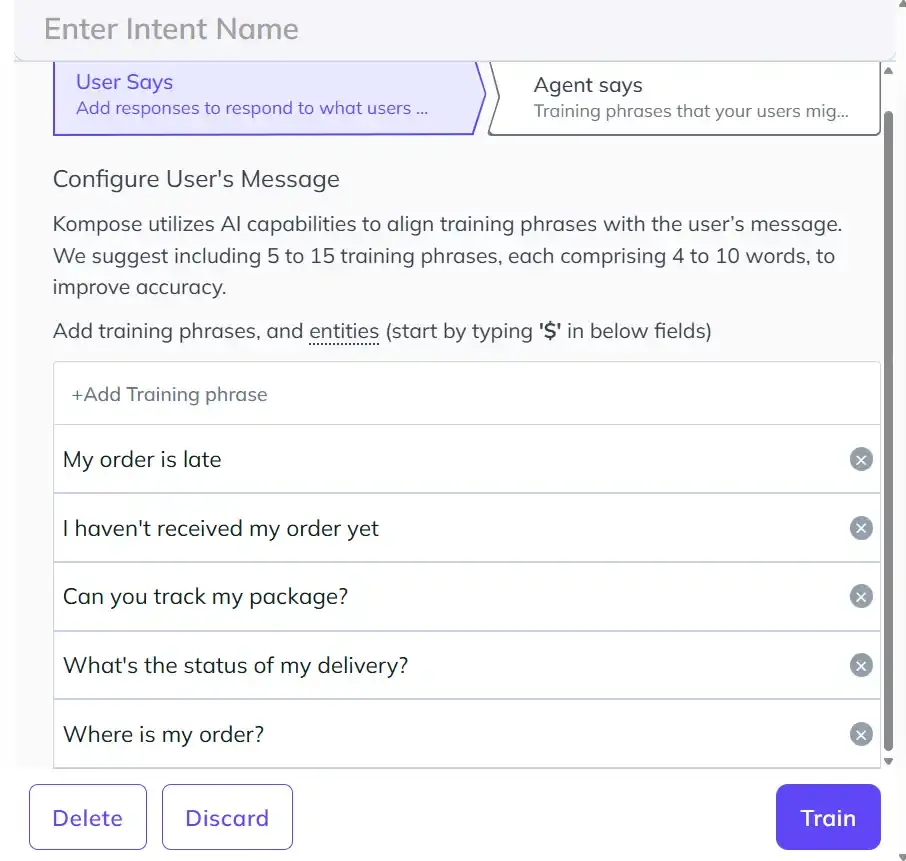
1. In the User Says section of the Intents(Q&A), add the following intents:
- My order is late
- I haven’t received my order yet
- Can you track my package?
- What’s the status of my delivery?
- Where is my order?
2. In the Agent Says section:
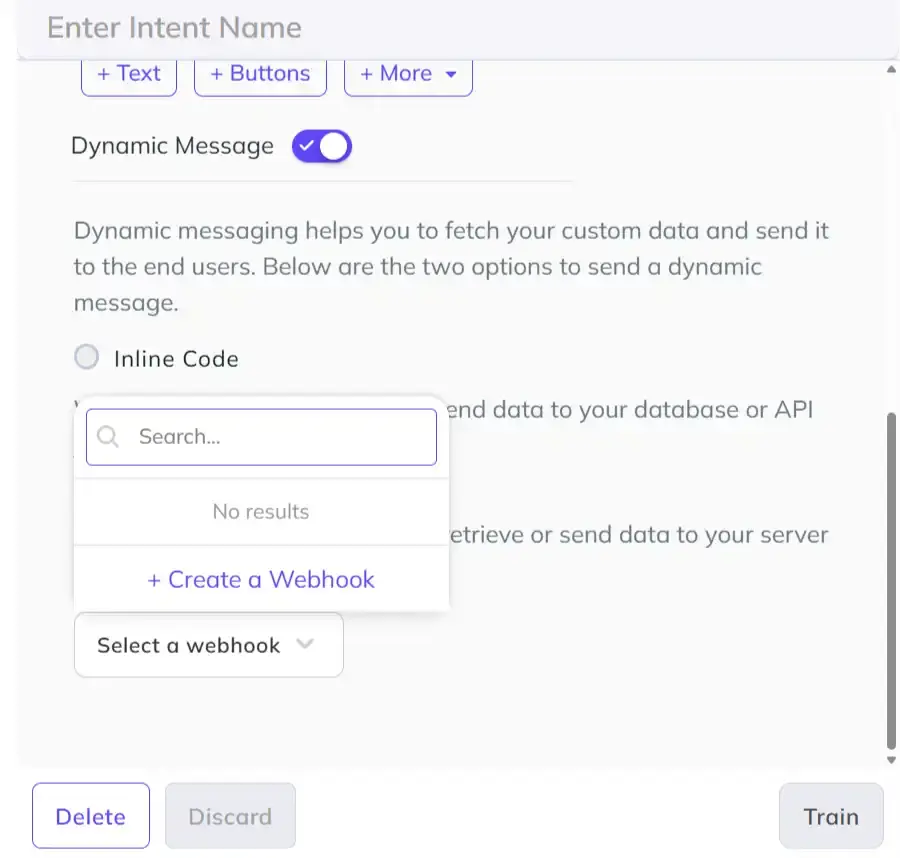
- Enable Dynamic messages, click on Webhook, followed by Create a Webhook.
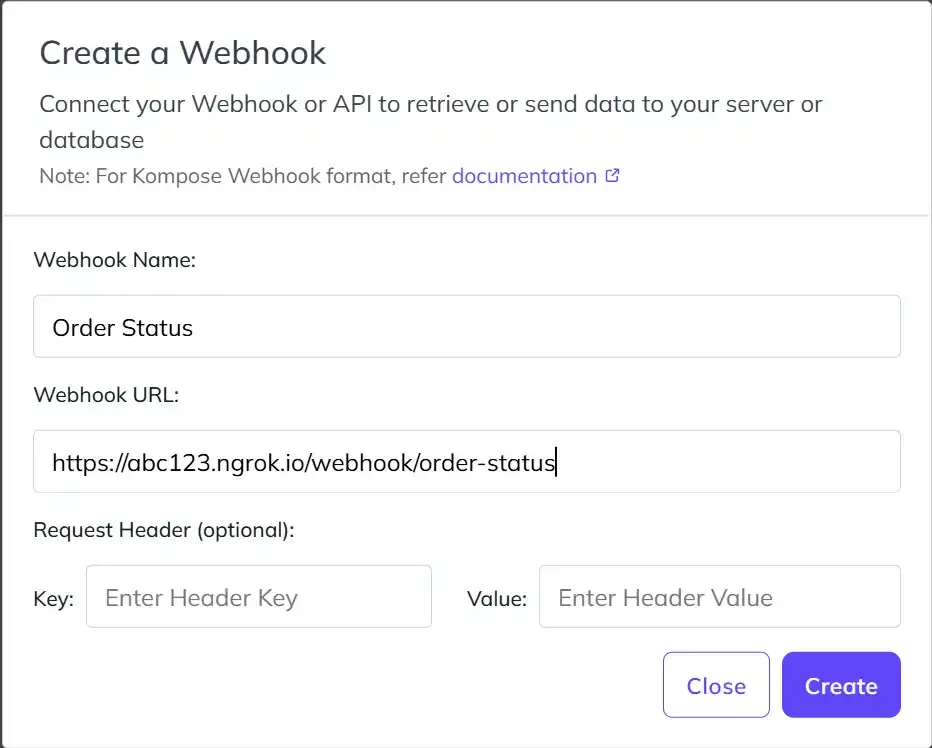
- Add a webhook name and URL to the dialog and click Create
- Click Train
Step 2: Create the Refund request intent
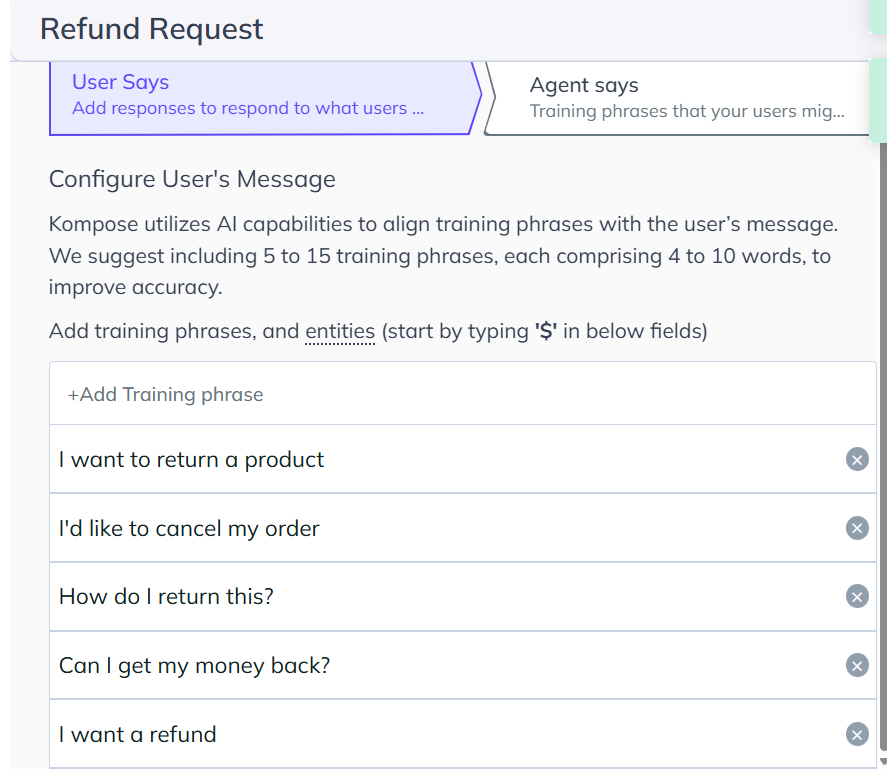
1. Set the intent name as Refund request
2. User Says:
- I want a refund
- Can I get my money back?
- How do I return this?
- I’d like to cancel my order
- I want to return a product
3. In Agent Says, enable Dynamic Message and click Create a Webhook
4. Webhook URL: https://abc123.ngrok.io/webhook/refund-request
5. Click Train.
Step 3: Test the connection
1. Start the server:
| npm start |
2. Open your Kommunicate chat widget and test each intent by sending one of the training phrases. For example:
- “Where is my order?” should trigger the order status webhook and ask for an order number
- “I want a refund” should trigger the refund request webhook and ask for an order number
3. You can also test the endpoints directly:
| curl -X POST http://localhost:3000/webhook/refund-request \ -H “Content-Type: application/json” \ -d ‘{“message”: “I want a refund for order 12345″, “groupId”: “123”, “from”: “user_abc”}’ |
Expected response:
| [ { “message”: “I can help you with a refund or return. Could you share your order number? You can find it in your confirmation email (for example: #12345).” } ] |
Once these tests work, your AI customer support agent with a Node.js backend is live.
Parting thoughts
This stack:
- Kommunicate for agent logic
- OpenAI for language intelligence
- Node.js for dynamic intent responses
Gets a production-grade customer service agent onto a real URL without writing a single line of AI code.
The Node.js webhooks give you full control over the responses that matter most: the ones tied to real policies, real order data, and real escalation paths. OpenAI handles everything else with Kommunicate.
From here, you can deploy your Node.js server to Railway, Render, or Vercel, add authentication, connect the widget to WhatsApp or your mobile app, and track performance through Kommunicate’s analytics dashboard.
Want to see this set up on a live account? Book a demo with Kommunicate, and we’ll walk you through a production deployment.

Adarsh Kumar is the CTO & Co-Founder at Kommunicate. As a seasoned technologist, he brings over 14 years of experience in software development, artificial intelligence, and machine learning to his role. His expertise in building scalable and robust tech solutions has been instrumental in the company’s growth and success.