Updated on September 8, 2025
Most Moodle admins wake up with hundreds of messages waiting for them on their dashboard.
Questions about login issues, assignment submissions, or proctoring often spike at midnight.
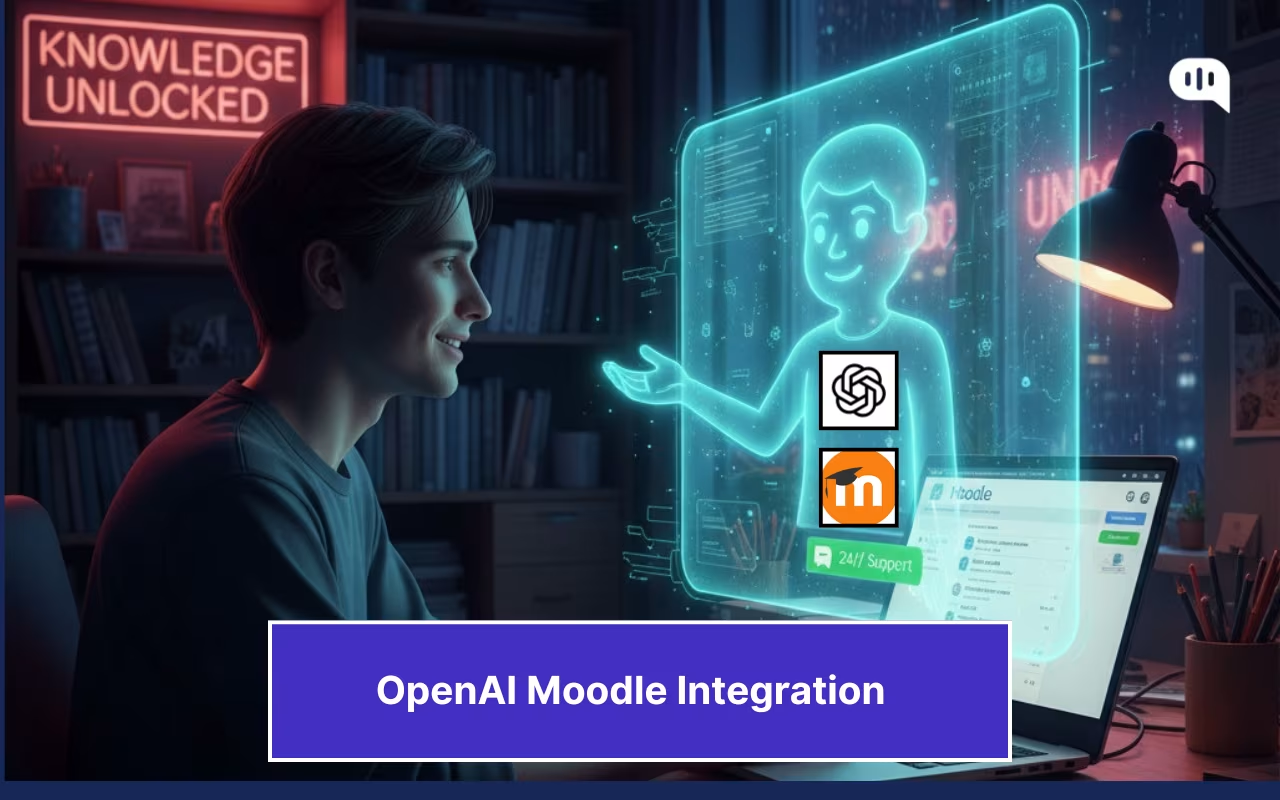
This is where a ChatGPT Moodle integration can help.
Oklahoma City Community Colleges (OCCC) uses Kommunicate to integrate OpenAI with Moodle and provide student support 24/7. As one student put it during a crunch-time exam, the chatbot on their Moodle homepage was “a lifesaver” because it delivered immediate help after hours.
“I was completing an exam last night, and I got kicked out of the exam. But I could get into the chatbot using the icon on the Moodle homepage, and it was a lifesaver since it was late already and I needed immediate assistance due to the exam due date.”
This guide shows how to integrate ChatGPT with Moodle using Kommunicate so your team can provide 24/7 student support without adding headcount. We’ll cover how to connect your Moodle instance with OpenAI (yes, “Moodle OpenAI” is very doable), then train your chatbot on institution-approved content so answers reflect your rules, not generic internet knowledge.
In the following sections, we’ll walk through setting up a 24/7 student support AI on your Moodle homepage.
Why do you need an OpenAI Moodle Chatbot for Student Support?
An OpenAI-powered Moodle chatbot (implemented with Kommunicate) gives students instant, accurate help inside Moodle while letting your team control the content, the workflow, and the brand experience.
What Problems Does the Chatbot Solve?
- 24/7 coverage where students already are – The chatbot lives on your Moodle homepage/course pages, so learners get help at midnight without waiting for office hours—perfect for time-sensitive exam or submission issues (like the OCCC student story you saw).
- Instant answers to repetitive questions – Password resets, course access, quiz attempts, grade visibility, assignment deadlines, proctoring rules, file-format errors—resolved in seconds, not hours.
- Lower ticket volume, better SLAs – Deflect the bulk of L1/L2 queries so your staff can focus on complex cases. Expect faster first-response times and fewer reopen loops.
How Does it Help Administrators?
- Train on your content, not the open web – With Kommunicate, you can point the bot to approved FAQs, policy docs, and help-center URLs or upload PDFs. The assistant answers with your rules and links—keeping guidance consistent and audit-friendly.
- No-code UI control – Customize the widget to your brand; set welcome prompts, quick-reply chips (“Reset password,” “Fix quiz attempt,” “See deadlines”), and escalation paths. Toggle features without redeploying code.
- Smart handoff to humans – Route edge cases to the right team (IT, Registrar, Accessibility, Library) with full transcript context. Create tickets in your help desk and continue the conversation in the same thread.
- Multilingual & accessible by design – Support international cohorts with automatic language handling and accessible interaction patterns—so “student support” covers every student.
- Scales with academic peaks – Orientation, enrollment, add/drop, midterms, finals—no extra hiring to keep up. The bot handles concurrent sessions gracefully.
How do you Maintain Security with the ChatGPT Moodle Integration?
- Governance you control – Limit the bot’s knowledge sources, define disallowed topics, and set fallback rules. Maintain a clear change log of updates to training content.
- Security & compliance ready – Align with institutional standards (GDPR/SOC2/ISO policies, FERPA-aware practices) and keep conversations within your approved data boundaries.
- Actionable analytics – See top intents, unresolved queries, and content gaps. Use these insights to update FAQs, fix broken LMS flows, and continuously improve service quality.
A Moodle OpenAI chatbot powered by Kommunicate turns nightly queues into self-service moments, improves student outcomes during the exact hours they need help most, and gives your team a controllable, secure way to deliver always-on student support.
How to Integrate Moodle with OpenAI?
We will use Kommunicate to handle the complex OpenAI API and the Moodle integration for this. Here are some prerequisites you need to have:
1. Site Admin access to Moodle
2. A Kommunicate account (Sign up here if you don’t have this)
We’re going to let Kommunicate handle the OpenAI integration for this. Let’s get started.
Set Up Your OpenAI AI Agent
- Log in to the Kommunicate dashboard. Click on Agent Integrations.
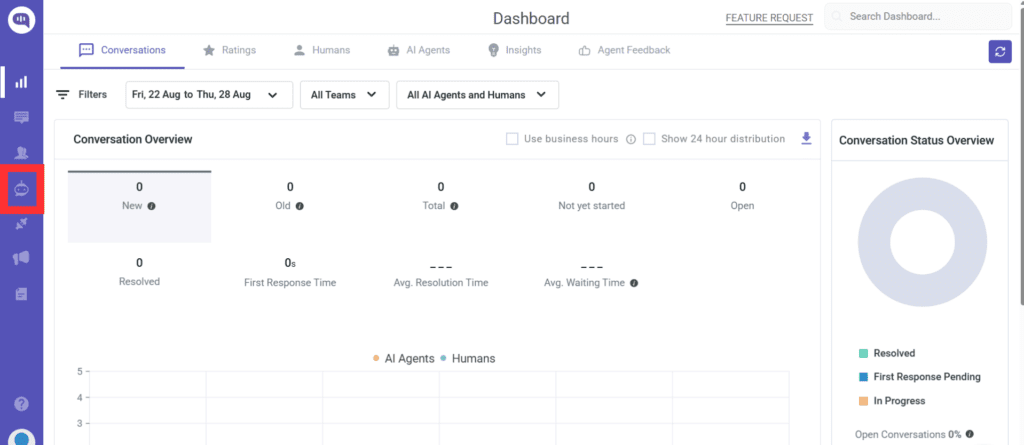
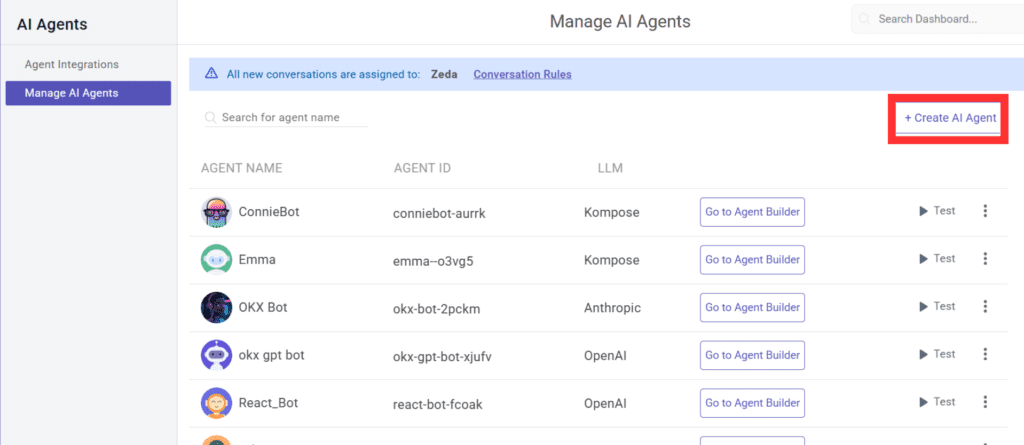
- In Agent Integrations, you will see the customer service AI agents that you’ve already created. We will create a new AI agent for this tutorial by clicking Create New Agent.
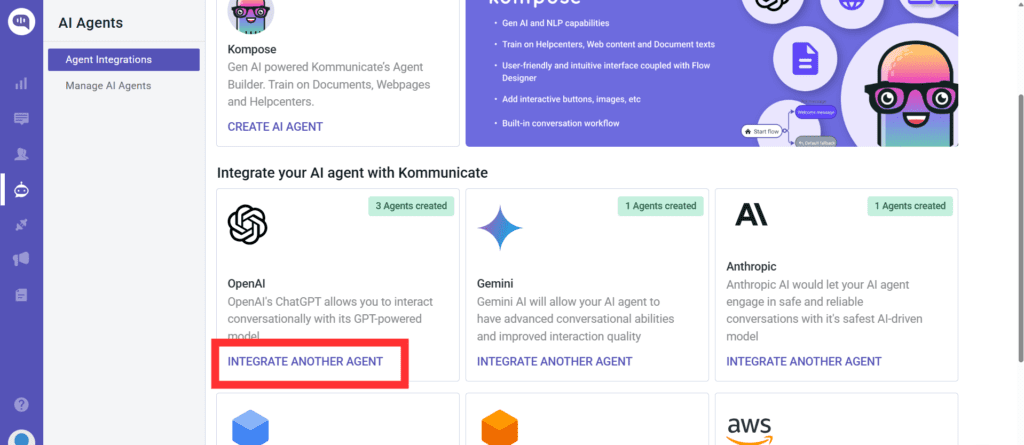
- When you click Create new Agent, Kommunicate will give you different options for building your AI agent. We will choose the OpenAI integration.
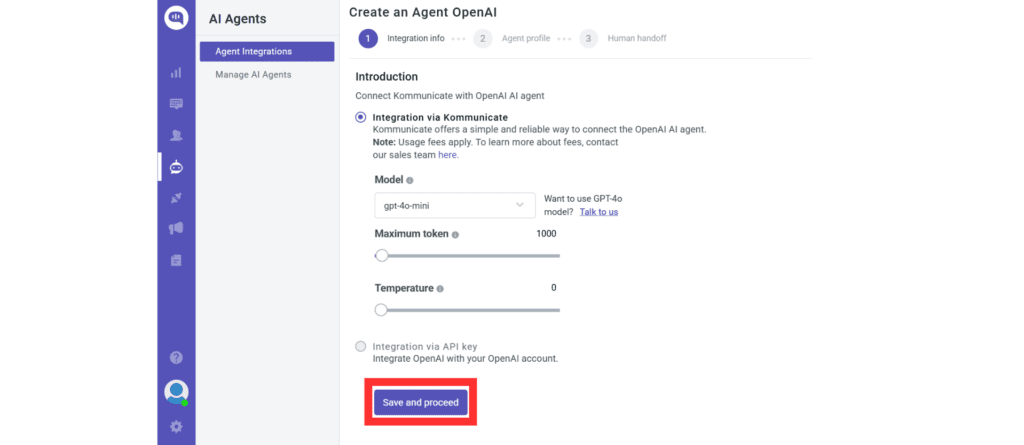
- Choose the AI model that will be behind your AI agent. We’re choosing 4-o-mini because smaller AI models give customers faster responses.
We’re also choosing 1000 as the max token number (the length of the answer the agent will give) and the temperature as 0 (This ensures that the agent derives facts directly from our documents without adding extra creativity).
Once done, click on Save and Proceed.
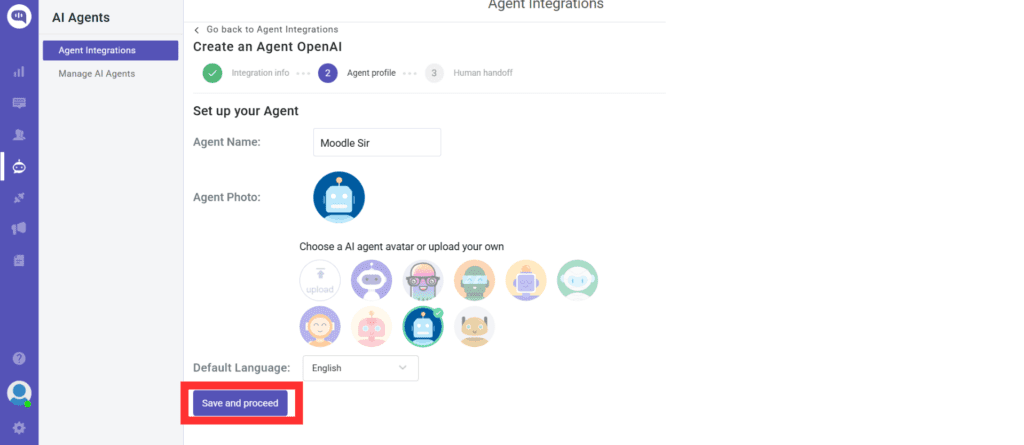
- After saving, you’ll be prompted to name your AI Agent. We’re naming our AI agent Moodle Sir and using a standard avatar (You can also use your own custom avatar for the agent).
- You’ll be asked whether you want to enable Human Handoff. We recommend enabling this feature to have human-in-the-loop conversations with your customers.
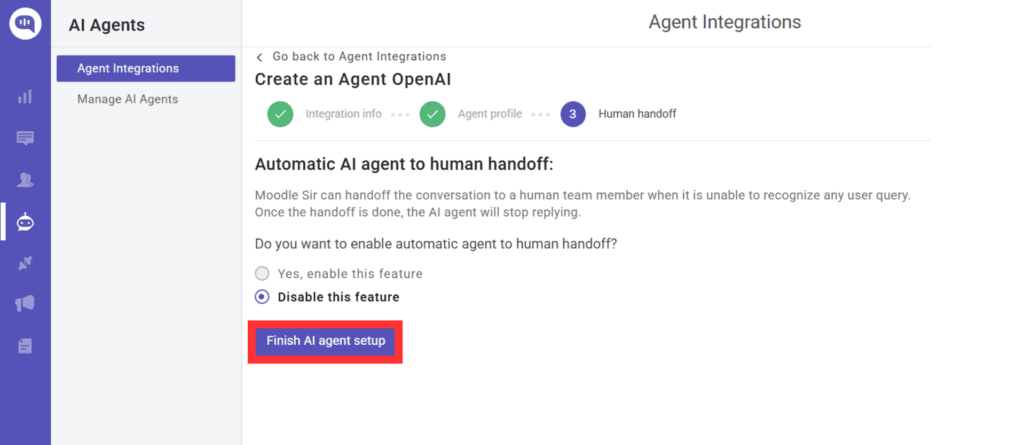
- Your OpenAI conversational AI agent is ready! Click on Let this bot handle all conversations so that this AI agent can be directly integrated with Moodle.
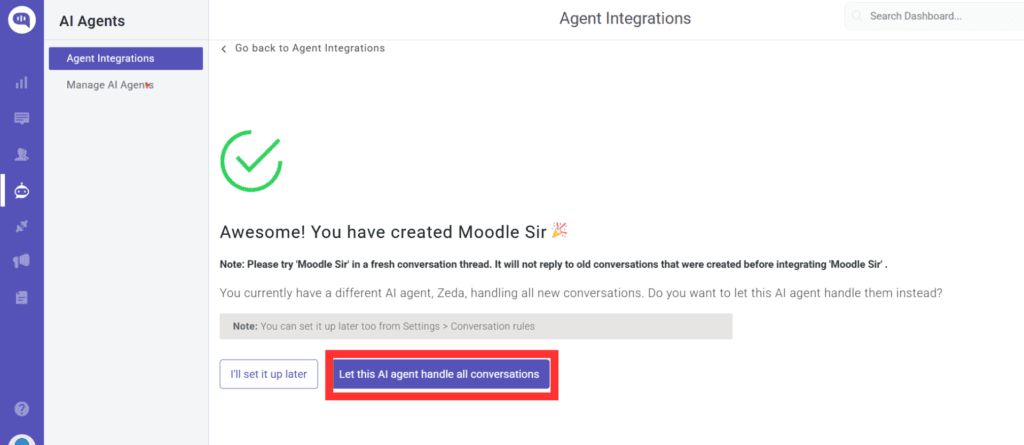
After this, you can train this conversational AI agent to have more detailed, on-brand conversations. You can use FAQs, documents, and URLs to create better AI agents.
You can find the details on how to train your AI agent in this article.
Now that we have a functioning AI agent, let’s add it to Moodle.
Connect the AI Agent with Moodle
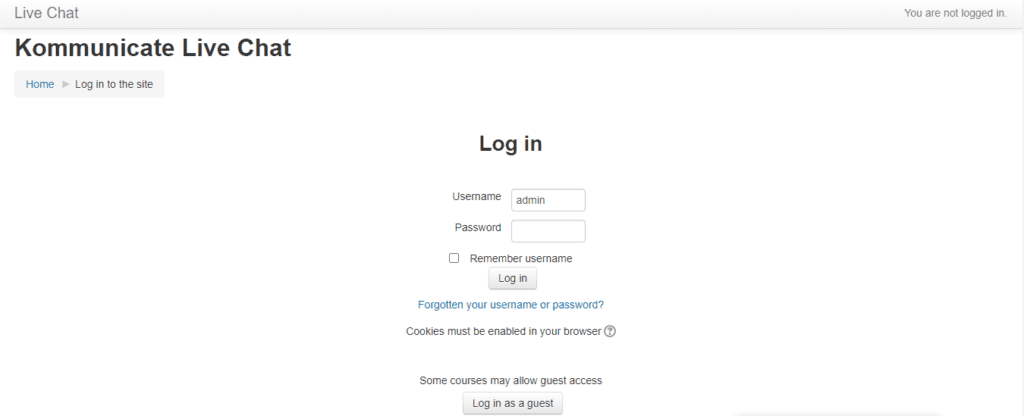
- Log in to your Moodle Account.
- In the Preference Section, click the Admin User dropdown and then click on Dashboard.
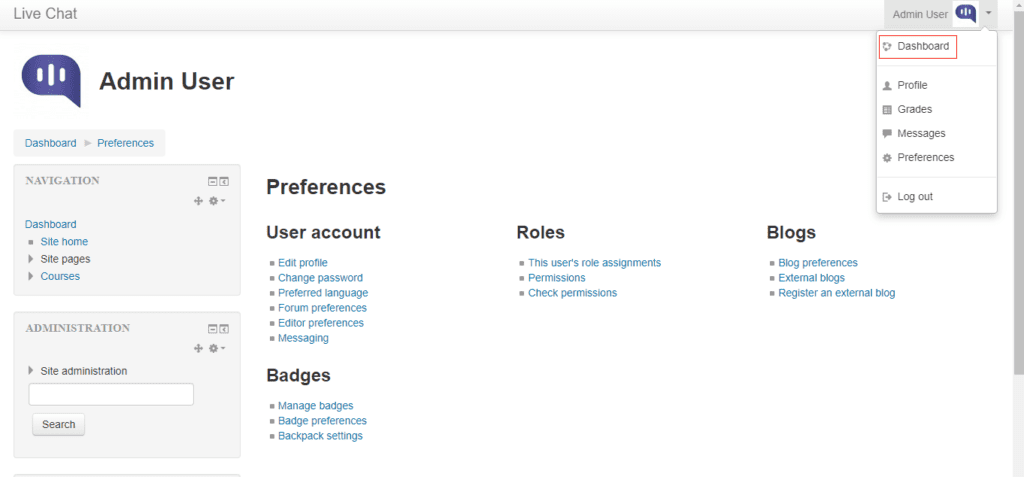
- On the left side, click on Site Administration.
- Under the Advanced Features section, it will show a host of options. Choose Appearance here.

- Click and open the Additional HTML section.
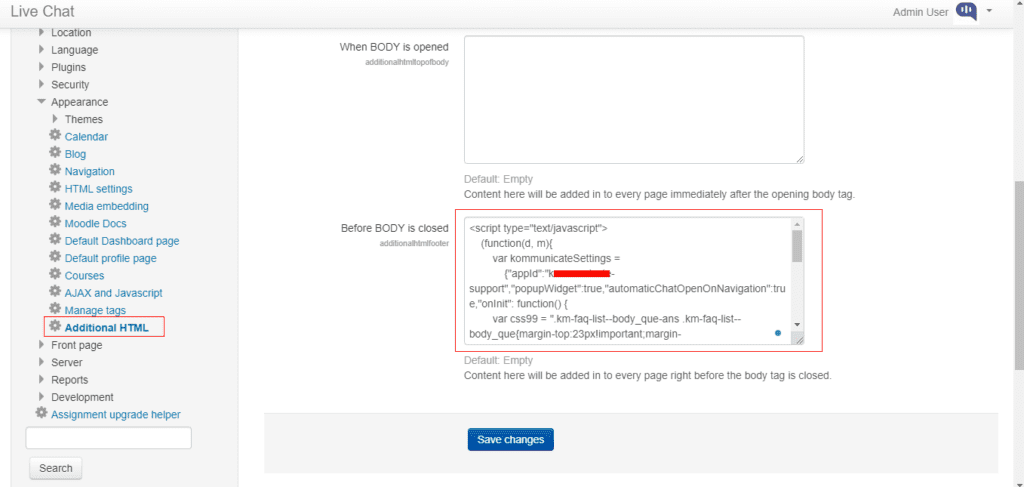
Add the code available from Kommunicate Dashboard -> Settings -> Install.
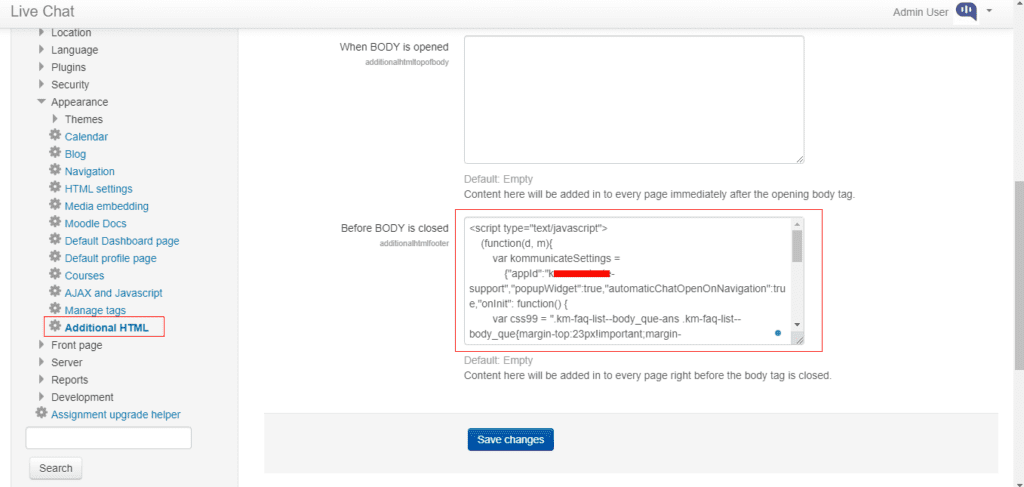
Insert the copied script in the box before the BODY is closed and save changes.
- That’s it, your Moodle AI agent should now be live on your website.

Test your chatbot against the FAQs you’ve provided during training, and see how it answers questions. You can always book a meeting with us if you need help while training your AI agent.
Conclusion
If your support queues peak after hours, a Moodle OpenAI chatbot powered by Kommunicate can close the gap. You’ll give students instant answers inside Moodle, reduce repetitive tickets for your team, and control content, workflows, and compliance completely.
Ready to see it in action? Book a demo with Kommunicate and get a quick walkthrough of training, UI customization, human handoff, and analytics!

Adarsh Kumar is the CTO & Co-Founder at Kommunicate. As a seasoned technologist, he brings over 14 years of experience in software development, artificial intelligence, and machine learning to his role. His expertise in building scalable and robust tech solutions has been instrumental in the company’s growth and success.