Updated on July 15, 2026
TL;DR
An OpenAI Slack chatbot is useful for:
- Summarizing Slack threads
- Searching internal conversations
- Drafting updates
- Helping teams understand what is happening inside busy channels
The Slack plugin for ChatGPT supports summaries, drafting, polishing replies, and searching Slack messages and files the user already has access to.
But customer support needs more than Slack-aware answers. When users ask about outages, failed payments, bugs, login issues, or broken workflows, the AI agent needs current incident data, customer-safe language, routing rules, and human handoff.
The recommended architecture is:
- Sentry webhook or approved Slack incident signal
- Incident ingestion layer
- Normalized customer-safe incident record
- OpenAI response generation
- Kommunicate customer chat
- Human escalation when needed
Kommunicate connects AI automation with real support operations through AI agent routing, live chat, webhooks, Slack notifications, and handoff to human agents.
An OpenAI Slack chatbot is useful for:
A customer opens your website chat and asks:
“Is checkout down?”
At the same time, your engineering team is discussing a Sentry alert in Slack. The issue is real. The error rate has spiked. Someone has posted a stack trace. Another engineer says they are checking the latest deployment.
This is exactly where a normal chatbot fails.
An FAQ chatbot can answer questions from static articles. The ChatGPT Slack plugin can summarize internal Slack conversations. But neither of those is enough when a customer-facing support bot needs to know whether there is an active product disruption, explain it safely, and bring in a human when the issue becomes account-specific.
That is where Kommunicate fits in.
In this guide, we will look at how an OpenAI Slack chatbot works, what it does well, where it falls short for customer support, and how Kommunicate can act as the intermediary layer for live incident updates, controlled AI responses, and human escalation.
- What is an OpenAI Slack chatbot?
- When should you use the official Slack plugin for ChatGPT?
- Where does the Slack plugin for ChatGPT fall short, and how can Kommunicate fill the gap?
- How to build a custom OpenAI-powered Slack chatbot with Kommunicate
- Best practices
- Final takeaway
What is an OpenAI Slack chatbot?
An OpenAI Slack chatbot is an AI assistant that can operate within Slack or use it as one of its context sources.
There are two broad versions.
- The first is the official Slack plugin for ChatGPT. This is useful for internal productivity. Teams can use it to summarize long threads, draft replies, polish messages, and search Slack messages or files they already have access to.
- The second is a custom OpenAI Slack chatbot. This is usually built with the Slack API, OpenAI, and a backend service. Instead of only helping employees inside Slack, it can listen to specific Slack events, pull context from selected channels, trigger workflows, or send updates to other systems.
For customer support, the second model is more useful.
You are not just asking ChatGPT to summarize a channel. You are building a support workflow where Slack, Sentry, OpenAI, and Kommunicate each play a specific role.
When should you use the official Slack plugin for ChatGPT?
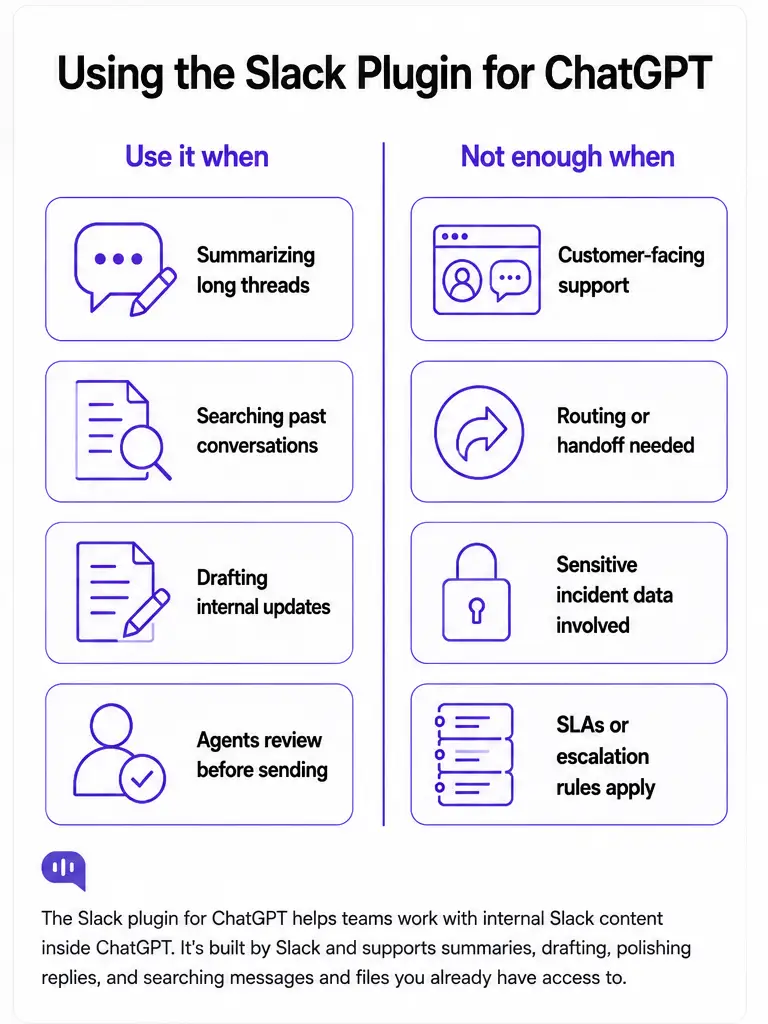
The Slack plugin for ChatGPT can be useful for support and engineering teams working with internal Slack content.
1. Summarizing long incident threads
Incident channels get noisy fast.
A simple payment failure can turn into a long thread with engineers, support agents, product managers, and customer success teams all adding context. OpenAI can summarize the thread into:
- What happened
- Which feature is affected
- Who is investigating
- What is the current workaround
- What still needs confirmation
This helps support agents understand the issue without reading every message.
2. Turning technical updates into plain English
Engineering updates are often written for engineers.
For example:
| checkout-api 5xx spike after release 4.19.2, rollback in progress |
A customer-facing support update should sound more like:
| Some users may be experiencing checkout failures. Our engineering team is working on a fix. Please retry after a few minutes, or contact support if your payment was charged. |
OpenAI can help convert internal technical language into clear support language. But the final customer-facing response still needs guardrails.
3. Searching past Slack context
Teams often solve the same issue more than once. An OpenAI assistant connected to Slack can help retrieve previous discussions, past fixes, and earlier incident decisions.
This is useful for support agents who need help with questions like:
- “Did this happen last month?”
- “What did we tell customers last time?”
- “Which team fixed this earlier?”
The official ChatGPT Slack app can search messages and files the user already has access to, and semantic search is available on selected Slack plans.
4. Drafting internal and external updates
OpenAI can draft:
- Incident updates
- Support replies
- Escalation notes
- Engineering handoff summaries
- Customer-facing status messages
This reduces the writing burden during high-pressure incidents.
The ChatGPT Slack integration is enough if your goal is purely internal productivity:
- Slack is mainly used for team discussion
- Incidents are handled manually
- Support agents review every message before sending
ChatGPT helps your team understand Slack faster, but it does not run the support workflow. The gap appears the moment Slack becomes connected to real customer-facing issues.
Where does the Slack plugin for ChatGPT fall short, and how can Kommunicate fill the gap?
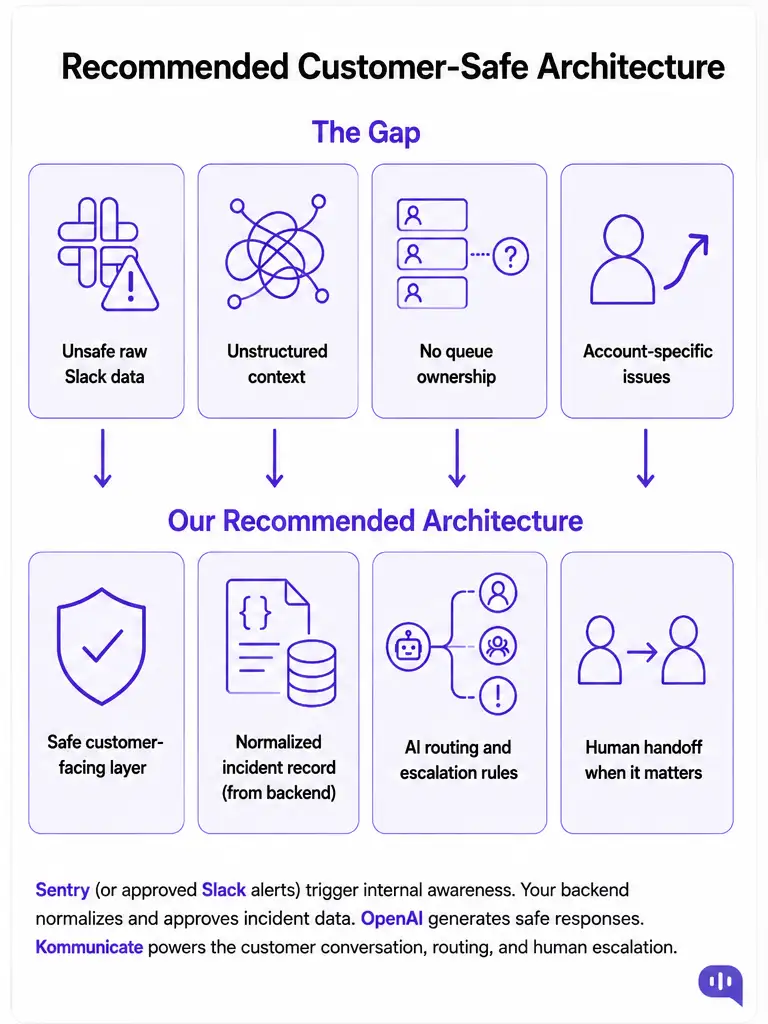
Kommunicate acts as the customer-facing support layer between OpenAI, Slack, Sentry, and your human agents. Here is where the gaps appear and how Kommunicate fills them.
1. Slack is not a safe customer-facing source
Slack messages are internal by default. A Sentry alert or engineering discussion may include stack traces, internal URLs, deployment names, customer identifiers, speculative root causes, and security-sensitive information. You should not pass raw Slack messages directly into a customer-facing chatbot and ask it to decide what is safe to reveal.
Kommunicate hosts the customer conversation separately across your website, app, or support channel. Customers do not receive direct access to Slack. Your backend should send only normalized, approved incident fields to the AI agent before Kommunicate delivers the response.
2. Slack context is unstructured
Slack is conversational. A thread may contain the answer, but it may also contain guesses, outdated updates, duplicate reports, or unresolved theories. The AI agent needs to know which information is current and approved.
That is why incident data should be normalized before being used in customer replies. Kommunicate supports integrations with OpenAI, Anthropic, Gemini, Dialogflow, Amazon Lex, IBM Watson, and custom AI agents via a webhook URL, where messages are forwarded to your backend and responses are returned to Kommunicate. This makes it straightforward to have OpenAI query a clean incident API before generating a reply, rather than consuming a raw Slack thread.
For example:
| { “incident_id”: “inc_checkout_2026_07_03”, “status”: “active”, “affected_area”: “checkout”, “severity”: “degraded_performance”, “customer_safe_summary”: “Some users may experience slower checkout or payment timeouts.”, “workaround”: “Please retry after a few minutes. Escalate urgent payment failures.”, “last_updated_at”: “2026-07-03T06:35:00Z”, “safe_to_disclose”: true } |
3. The Slack plugin cannot manage the support queue
A Slack chatbot may summarize a problem, but it does not manage the support queue. It does not decide which customer needs a human, enforce escalation rules, or route payment failures to billing and login issues to technical support.
Kommunicate handles human handoff when the AI agent cannot answer, when the user asks for a person, or when a high-priority intent is detected. For incident workflows, handoff rules should trigger when the user reports:
- Duplicate or failed payment
- Account lockout or data loss
- Security concern
- Refund or SLA credit request
- Enterprise escalation
- Angry or churn-risk language
- Repeated failed troubleshooting
4. Incident questions become account-specific quickly
A user asking “Is checkout down?” can be answered with general incident context. A user saying “I was charged twice” needs human support. A user asking for a refund, SLA credit, or compliance explanation should not be handled by a generic Slack-aware bot.
How to Set Up the Kommunicate Slack Integration
Kommunicate’s Slack integration is what closes this loop for human agents. Integrating Kommunicate with Slack enables agents to receive real-time notifications directly within Slack, with key ticket details such as the requester’s name, creation time, ticket status, and a summary of the issue.
It reduces the risk of conversations being missed by notifying the relevant team and improving visibility across the organization.
- Log in to your Kommunicate Dashboard and navigate to the Integrations page, then select Slack
- Click the Connect to Slack button
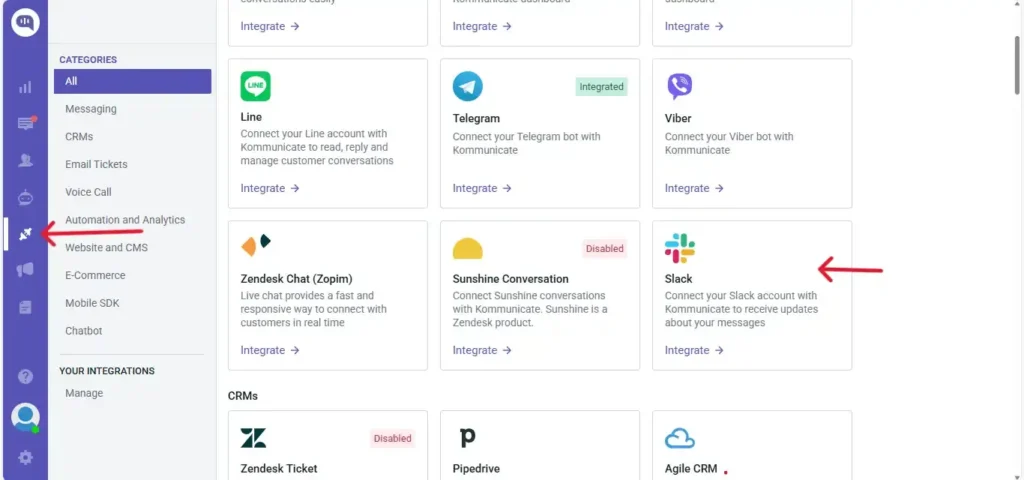
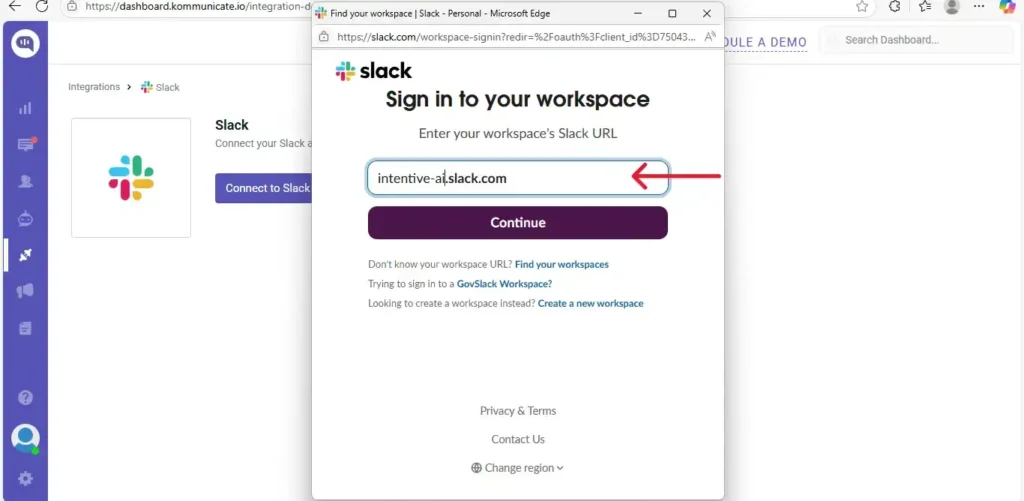
- Sign in to your workspace by entering your workspace URL
- Review the permissions and click Allow
- Once connected, you will receive a confirmation that Slack has been integrated
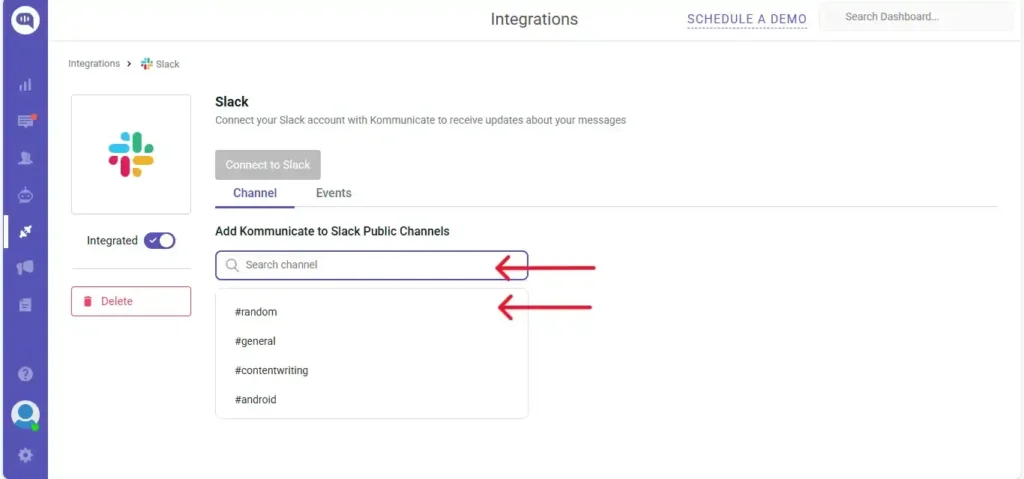
- Search for and add the channel where you want to receive notifications. You can add more than one channel
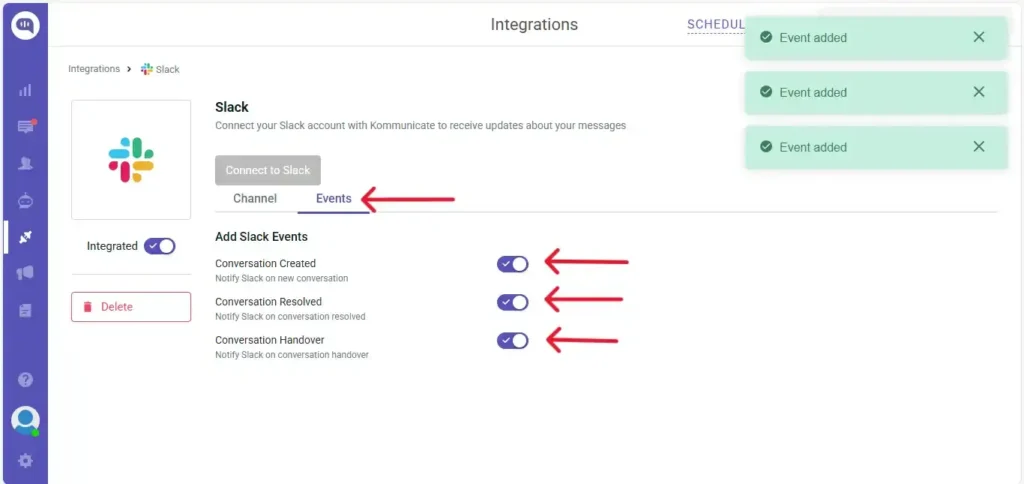
- Enable the events of your choice:
- Conversation Created: A Slack notification is sent when a new conversation starts
- Conversation Resolved: A Slack notification is sent when a conversation is resolved
- Conversation Handover: A Slack notification is sent when a conversation is assigned to an agent
- Each notification includes fields such as requester name, status, assignee, conversation link, date and time, and a summary of the issue.
Slack is useful for the right job: alerting humans and coordinating support internally, without exposing raw engineering context to customers.
How to build a custom OpenAI-powered Slack chatbot with Kommunicate
Recommend Architecture
We’re going to follow this architecture:
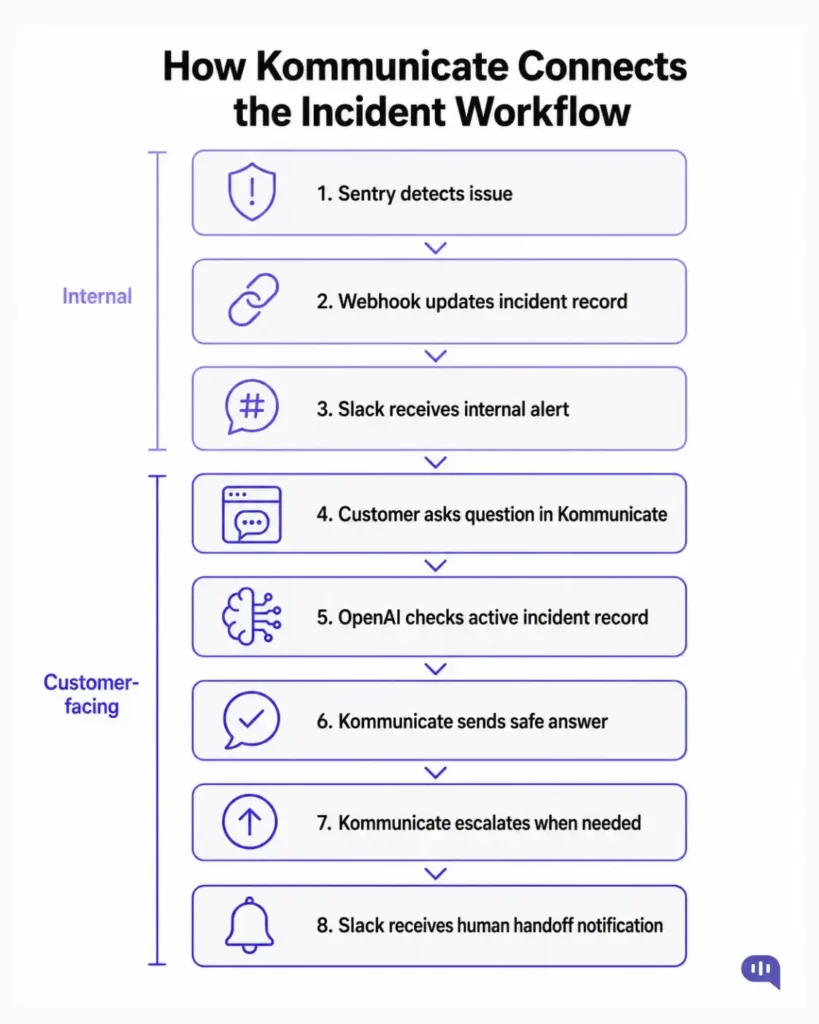
Sentry can send alerts through webhooks, and Sentry’s Slack integration can send workflow, deploy, and issue alert notifications into Slack. Slack is useful for internal awareness. Sentry or your own incident database should be the cleaner incident source. Kommunicate should control what reaches the user.
Step-by-step workflow
Step 1: Connect Kommunicate with Slack
Follow the integration steps above to connect Slack from the Integrations section and enable the conversation events that matter to your team.
Step 2: Create an incident data source
Create a small incident API or database.
Each record should include:
| { “incident_id”: “inc_checkout_2026_07_03”, “status”: “active”, “affected_area”: “checkout”, “severity”: “degraded_performance”, “customer_safe_summary”: “Some users may experience slower checkout or payment timeouts.”, “workaround”: “Please retry after a few minutes. Escalate urgent payment failures.”, “last_updated_at”: “2026-07-03T06:35:00Z”, “safe_to_disclose”: true } |
This becomes the source OpenAI can safely use.
Step 3: Ingest Sentry or Slack signals
Use Sentry webhooks as the primary source for technical incidents. Send the same alert to Slack for internal visibility.
Subscribe only to the message event types you require. Give the Slack app the minimum OAuth scopes needed, add it only to approved channels, and enforce a channel-ID allowlist in your backend. For private incident channels, the app must have appropriate access and channel membership.
Also, remember to implement the following:
- Verify every incoming Slack request using the app’s signing secret. Slack signs requests so your endpoint can confirm that the payload is authentic.
- Acknowledge Slack events promptly and move longer processing to a queue. Slack recommends returning a successful response within three seconds rather than completing AI processing inside the initial request.
Avoid reading every Slack message. Keep access narrow.
Step 4: Connect OpenAI through a custom AI agent
Create a Kommunicate AI chatbot that calls your incident API when it detects product queries: “checkout down”, “payment failed”, or “login issue”. This approach works well when incident categories are narrow, predictable, and mapped to a controlled incident schema.
If no active incident is found, the AI agent should explain that there is no known widespread disruption and continue with standard troubleshooting. If the incident service is unavailable or returns stale or uncertain information, the conversation should be escalated.
With the Kommunicate–Slack integration, your support team receives a notification when a conversation is escalated. The support team receives the escalation notification and can use the included conversation details and link to review the complete interaction.
Example customer conversation
Checkout outage example
User: Is checkout down? I cannot complete my payment.
Bot: We are currently seeing slower checkout performance for some users. This may cause payment timeouts or failed checkout attempts. Our engineering team is already investigating.
Please try again in a few minutes. If your payment was charged or this is urgent, I can connect you with a support agent.
Duplicate payment example
User: I was charged twice.
Bot: I’m sorry you were charged twice. I’ll connect you with a billing support agent who can review the transactions. Please do not share your full card number or other sensitive payment information in the chat.
Best practices
We recommend that you follow some best practices while implementing the AI agent we have described above:
- Do not expose raw Slack threads – Never show customers raw Slack messages, stack traces, internal URLs, or speculative engineering comments.
- Use Sentry or an incident API as the source of truth – Slack is good for team discussion. Incident APIs are better for customer-facing status.
- Keep the incident schema customer-safe – Only expose approved fields such as affected area, current status, workaround, and last updated time.
- Do not invent ETAs – If the incident record does not include an ETA, the chatbot should say the team is investigating instead of making one up.
- Escalate sensitive issues – Payments, refunds, security, data loss, account access, and SLA questions should go to a human.
- Log every AI decision – Track the incident ID, detected intent, incident lookup result, response version and handoff reason. Redact personal or sensitive information before storing logs.
Final takeaway
An OpenAI Slack chatbot is useful when your team needs faster summaries, better search, and cleaner internal updates. But customer support needs more than a smart assistant inside Slack.
When a user asks about a live disruption, the chatbot needs current data, safe language, escalation logic, and a human fallback path. Slack can provide internal context. Sentry can provide technical signals. OpenAI can generate clear responses.
Kommunicate ties the workflow together. It gives you the customer-facing chat layer, AI agent routing, webhooks, Slack notifications, and human handoff needed to turn Slack-aware AI into a real support experience.
The result is not just a chatbot that understands Slack. It is a support workflow that knows when to answer, when to escalate, and when to bring in a human.
Want to build a customer-safe incident support workflow for your team? Book a demo with Kommunicate.
If you want to implement this for your team, you can book a meeting with us.

Adarsh Kumar is the CTO & Co-Founder at Kommunicate. As a seasoned technologist, he brings over 14 years of experience in software development, artificial intelligence, and machine learning to his role. His expertise in building scalable and robust tech solutions has been instrumental in the company’s growth and success.