Updated on June 11, 2026
TL;DR
To build an OpenAI chatbot with React and Next.js, follow these steps:
- Run npx create-next-app and install openai and zod
- Add your OPENAI_API_KEY to .env.local
- Create app/api/chat/route.ts to place the OpenAI API call
- In that route, validate the incoming message with Zod, retrieve relevant knowledge from your FAQ/policy docs, and call openai.responses.create with a structured JSON schema that forces the model to return an action (answer, clarify, fallback, or handoff) alongside its message.
- Build a “use client” React component that sends user input to /api/chat and renders the response.
- Add error handling so every failure state (timeout, no source found, rate limit) returns a stable response that the UI can act on.
- When you’re ready for production, swap the plain widget for Kommunicate to get human handoff, routing, and analytics without rebuilding the support layer yourself.
Most React chatbot tutorials focus on the chat UI first.
The UI matters, but the support problem is more important. If the AI answers a refund question without policy context, no amount of React polish will save the experience. If the model cannot decide when to hand off, the chatbot becomes a bottleneck rather than a relief valve.
So this guide builds the chatbot as a small support system that looks like this:
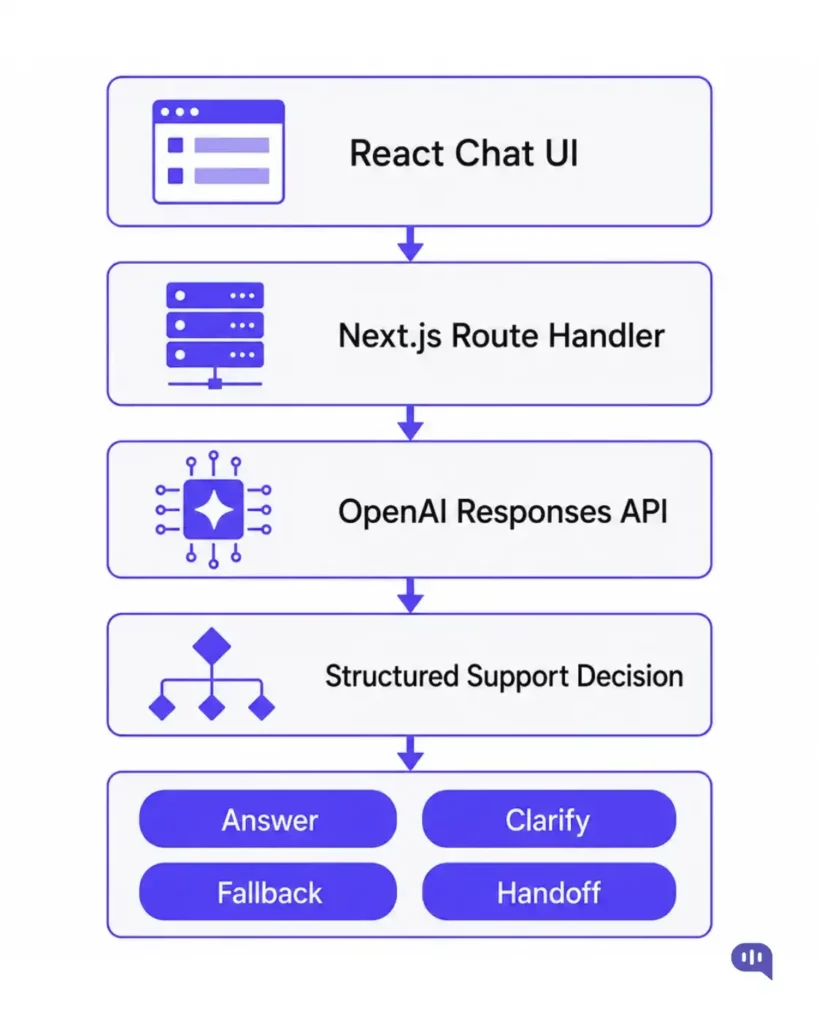
In this article, we’ll talk about:
- What are we building?
- Where to put the OpenAI API key?
- Project setup
- Build the Next.js API route
- Build the React chat UI
- Add knowledge context
- Add streaming and error handling
- Should you use this chatbot instead of a support platform?
- Parting Thoughts
What are we building?
We will build a simple customer support chatbot with:
- A React chat interface
- A Next.js backend route
- An OpenAI API call
- A structured response schema
- Fallback and handoff decisions
We’re going to focus heavily on the escalation paths in this tutorial. The chatbot here will perform different tasks depending on the type of question.
| User Situation | Correct Action |
|---|---|
| Clear FAQ question | Answer from the knowledge context. |
| Vague question | Ask one clarifying question. |
| Missing knowledge | Fallback or suggest support. |
| Human request | Hand off. |
| Refund, billing, and account risk | Hand off or require review. |
First, we’ll start by taking a look at how we’ll use the OpenAI API in this tutorial and the steps we will take to keep it safe.
Where to put the OpenAI API key?
Never call OpenAI directly from React in the browser.
The browser cannot protect your API key. A user can inspect network calls, extract keys, and abuse your account. Your backend should own the following:
- API keys
- Model configuration
- Prompt rules
- Retrieval
- Rate limits
- Logging
- Fallback behavior
We will use React only to render messages and send user input. Additionally, you should try to avoid some mistakes.
Common mistakes to avoid before you start
| Mistake | Better Approach |
|---|---|
| Calling OpenAI from React | Use a Next.js server route. |
| Sending entire chat history | Send recent and useful turns only. |
| No knowledge context | Retrieve sources before calling the model. |
| Free-text response only | Use structured decisions. |
| No fallback | Design fallback as a product action. |
| UI-first thinking | Build the support workflow first. |
Now that you have an idea about how to avoid some common security failures, let’s get started with this project.
Project setup
- Create a Next.js app:
| npx create-next-app@latest openai-next-chatbot cd openai-next-chatbot npm install openai zod |
- Add .env.local:
| OPENAI_API_KEY=your_api_key_here OPENAI_SUPPORT_MODEL=gpt-5.4-mini |
gpt-5.4-mini is OpenAI’s fast, cost-efficient small model released in April 2026. It runs more than 2x faster than its predecessor and handles high-volume workloads well.
Now that we have this configured, we’re going to start building the Next.js server.
Build the Next.js API route
Create app/api/chat/route.ts:
| import OpenAI from “openai”; import { z } from “zod”; const openai = new OpenAI({ apiKey: process.env.OPENAI_API_KEY }); const RequestSchema = z.object({ message: z.string().min(1).max(4000), history: z.array(z.object({ role: z.enum([“user”, “assistant”]), content: z.string() })).default([]) }); const supportDecisionSchema = { type: “object”, additionalProperties: false, properties: { action: { type: “string”, enum: [“answer”, “clarify”, “fallback”, “handoff”] }, message: { type: “string” }, reason: { type: “string” } }, required: [“action”, “message”, “reason”] }; export async function POST(req: Request) { const body = await req.json(); const { message, history } = RequestSchema.parse(body); const response = await openai.responses.create({ model: process.env.OPENAI_SUPPORT_MODEL || “gpt-5.4-mini”, input: [ { role: “system”, content: `You are a customer support AI agent. Answer only when safe. If the customer asks for a human, choose handoff. If the answer is missing from the context provided, choose fallback.` }, …history.slice(-6), { role: “user”, content: message } ], text: { format: { type: “json_schema”, name: “support_decision”, schema: supportDecisionSchema, strict: true } } }); return Response.json(JSON.parse(response.output_text)); } |
This route returns an action, not just a message. The React UI does not need to guess what happened because the backend tells it.
Build the React chat UI
Create a simple client component:
| “use client”; import { useState } from “react”; type Message = { role: “user” | “assistant”; content: string; }; export default function SupportChat() { const [messages, setMessages] = useState<Message[]>([]); const [input, setInput] = useState(“”); const [loading, setLoading] = useState(false); async function sendMessage() { if (!input.trim()) return; const nextMessages = […messages, { role: “user” as const, content: input }]; setMessages(nextMessages); setInput(“”); setLoading(true); const res = await fetch(“/api/chat”, { method: “POST”, headers: { “Content-Type”: “application/json” }, body: JSON.stringify({ message: input, history: messages }) }); const decision = await res.json(); setMessages([ …nextMessages, { role: “assistant”, content: decision.message } ]); setLoading(false); } return ( span class=”language-xml”>span class=”hljs-tag”><div className=”mx-auto max-w-xl p-4″>/span> span class=”hljs-tag”><div className=”space-y-3 rounded border p-4″>/span> {messages.map((message, index) => ( span class=”hljs-tag”><div key={index} className={message.role === “user” ? “text-right” : “text-left”}>/span> span class=”hljs-tag”><span className=”inline-block rounded bg-gray-100 px-3 py-2″>/span> {message.content} span class=”hljs-tag”></span>/span> span class=”hljs-tag”></div>/span> ))} {loading && span class=”hljs-tag”><p>/span>Checking…span class=”hljs-tag”></p>/span>} span class=”hljs-tag”></div>/span> span class=”hljs-tag”><div className=”mt-3 flex gap-2″>/span> span class=”hljs-tag”><input className=”flex-1 rounded border px-3 py-2″ value={input} onChange={(e) =>/span> setInput(e.target.value)} onKeyDown={(e) => e.key === “Enter” && sendMessage()} /> span class=”hljs-tag”><button className=”rounded bg-black px-4 py-2 text-white” onClick={sendMessage}>/span> Send span class=”hljs-tag”></button>/span> span class=”hljs-tag”></div>/span> span class=”hljs-tag”></div>/span>/span> ); } |
This is intentionally plain to help you get to an MVP and see support behavior without working on complicated UI.
If you are building with standalone React rather than Next.js, the setup for the backend will be different. We’ve written an OpenAI + ReactJS integration guide that covers that path using Kommunicate as the UI layer, which removes the need to build the route handler yourself.
Add knowledge context
For a support chatbot, the route should retrieve relevant FAQ or policy content before calling OpenAI.
| function retrieveKnowledge(message: string) { const docs = [ { title: “Refund policy”, text: “Refunds are available within 30 days if the item is unused and in original packaging.” }, { title: “Shipping policy”, text: “Standard shipping takes 3-5 business days.” } ]; return docs.filter(span class=”hljs-function”>(doc) =>/span> message.toLowerCase().includes(doc.title.split(” “)[0].toLowerCase()) ); } |
Then add it to the input using the following:
const sources = retrieveKnowledge(message);
const context = sources.map((s) => `${s.title}: ${s.text}`).join(“\n”);
A note on this retrieval function: The keyword filter above is intentional shorthand for a tutorial.
In production, you’ll need to replace it with vector similarity search, a dedicated retrieval API, or a RAG pipeline. Keyword matching will miss most real customer queries, and the model should choose a fallback rather than guess when no source is found.
Add streaming and error handling
1. Handle failures as product states
A production chat route should not return raw OpenAI errors to the React UI. The UI needs a stable response contract even when the model call fails, retrieval returns no sources, or the structured output cannot be parsed.
| Failure | Backend Action | UI Behavior |
|---|---|---|
| OpenAI timeout | Return fallback with retry-safe reason. | Show a helpful message and offer support. |
| No source found | Return fallback or clarify. | Do not show a made-up answer. |
| User asks for a human | Return handoff. | Open the handoff path instead of continuing the AI chat. |
| Schema parse failure | Return fallback and log schema version. | Keep the chat usable. |
| Rate limit | Return fallback or queue async work. | Avoid a spinning loading state. |
The route response should include enough structure for the UI to know what to do next:
type ChatDecision = {
action: “answer” | “clarify” | “fallback” | “handoff”;
message: string;
reason: string;
handoffSummary?: string;
};
React should not infer handoff from a phrase like “talk to support.” The backend should return action: “handoff” so the UI or support widget can route the customer with context.
2. Add streaming carefully
Streaming is useful when the chatbot is producing a visible answer. It is less useful when the backend must first make a routing decision.
For support workflows, a good pattern is:
- Make a structured decision first.
- If action is answer: stream the final reply.
- If action is handoff, stop and route: do not stream a confident answer and then decide it needs a handoff.
You now have an OpenAI chatbot that can answer questions from your documents. However, this is just a prototype; you need to make some decisions before you ship this to production.
Should you use this chatbot instead of a support platform?
Building this in Next.js is a good way to understand the mechanics.
For production support, you will need to add:
- Routing
- Handoff
- Conversation management
- Analytics
- Knowledge refresh
- Business-user controls
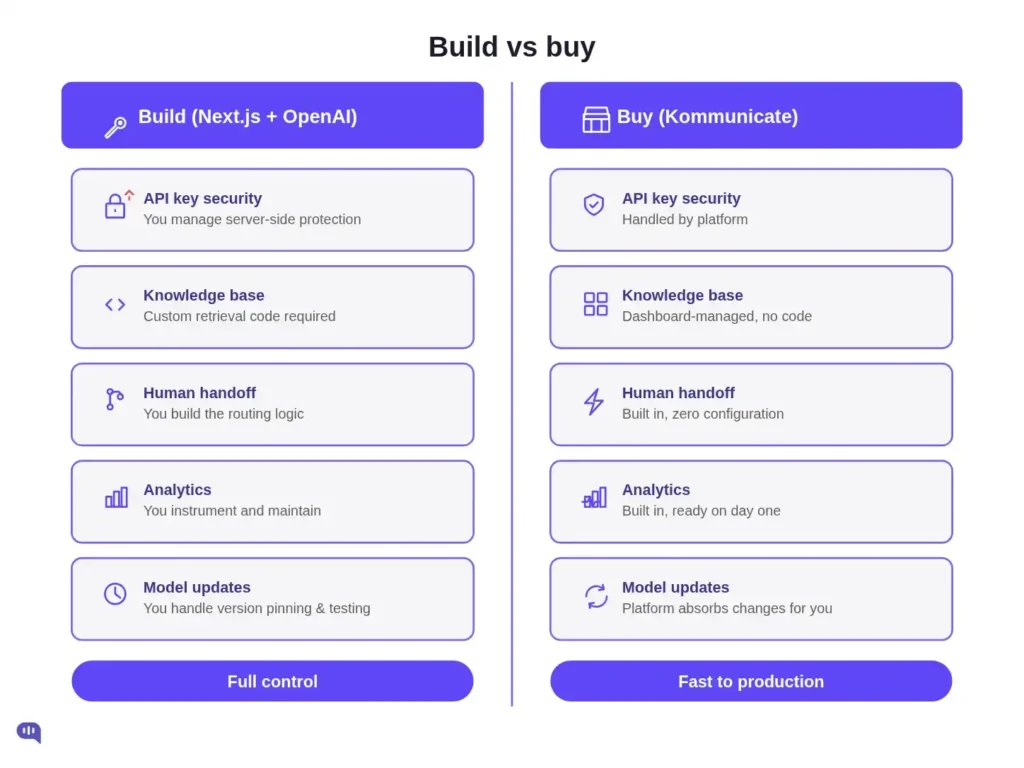
So, when should you build a custom chatbot, and when should you buy an AI support platform like Kommunicate?
Build vs. buy
| Build (Next.js + OpenAI) | Buy (Kommunicate) | |
|---|---|---|
| Setup time | Hours to days | Minutes |
| API key security | You manage server-side protection | Handled by the platform |
| Knowledge base | Custom retrieval code | Dashboard-managed |
| Human handoff | You build the routing logic | Built in |
| Chat history | You manage state and storage | Built in |
| Multi-channel | Each channel is a separate build | You get access to WhatsApp, web, and mobile out of the box |
| Analytics | You instrument and maintain | Built in |
| Non-engineer controls | None, everything is code | Business users can edit flows, FAQs, and routing |
| Streaming | You implement and manage | Handled by the platform |
| Fallback logic | You design and maintain | Configurable without code |
| Ongoing model updates | You handle version pinning and testing | The platform absorbs changes |
| Cost at low volume | Low, pay only for API tokens | Subscription cost regardless of usage |
| Cost at scale | Grows with token usage | Predictable per-seat or usage pricing |
| Right for | Teams that need full control over the AI layer | Support teams who need a production-ready solution fast |
When your main product isn’t a support chatbot, it’s really hard to justify the engineering hours required to build a production support platform. So, if you decide to skip the custom route entirely and connect a pre-built AI agent to Next.js through a dashboard, see how to build an enterprise support chatbot for a Next.js website.
| “use client”; import { useEffect } from “react”; import Kommunicate from “@kommunicate/kommunicate-chatbot-plugin”; export function KommunicateSupportWidget() { useEffect(() => { Kommunicate.init(“APP_ID”, { automaticChatOpenOnNavigation: true, popupWidget: true, }); }, []); return null; } |
Keep OpenAI calls on your server route. Let the widget own the support experience, and let your backend own retrieval, validation, and routing decisions.
Parting thoughts
React and Next.js make the interface easy. OpenAI makes the language layer strong. But the support workflow decides whether the chatbot is useful. On a high-level, you need to implement the following:
- Build the routing process
- Ground answers in knowledge
- Return structured decisions
- Escalate when needed
That is the difference between a chatbot demo and a support experience.
If you want to build an AI-first support experience that doesn’t cost you engineering overhead, feel free to book a demo with us. You can also sign up to build and deploy an OpenAI-powered chatbot yourself.

Adarsh Kumar is the CTO & Co-Founder at Kommunicate. As a seasoned technologist, he brings over 14 years of experience in software development, artificial intelligence, and machine learning to his role. His expertise in building scalable and robust tech solutions has been instrumental in the company’s growth and success.