Updated on February 19, 2026

Over the past few years, WhatsApp has become the go-to customer service portal for many businesses. And while this is helpful (WhatsApp’s reach means your audience is probably on there for a significant portion of a day), it can also be confusing.
If you’re a mid-sized business or enterprise operating over WhatsApp, you get:
1. Zero visibility into the support queue
2. SLA misses
3. Unseen and unresolved messages
The only way to turn WhatsApp into a speed-first, centralized support channel is with a WhatsApp shared inbox. This app centralizes all customer messages into one dashboard so your team can deliver fast and efficient customer support at scale.
But, to reach the promised land of near-instant first-response time (FRT), explicit ownership and routing for each ticket, and clear roles and permissions, you need to build a high-velocity customer support process.
This playbook shows you how to build that system on WhatsApp with Kommunicate. We’ll cover:
1. What is WhatsApp Shared Inbox?
2. How Does Kommunicate’s WhatsApp Shared Inbox Work?
3. How Can a Shared Inbox Help You Scale Your Customer Support Operations?
4. How Can You Configure Roles-Based Access and Permissions for Customer Support on WhatsApp?
5. How Can You Manage Queues and SLAs for WhatsApp Customer Service?
6. How do you Track Customer Service Performance on WhatsApp?
7. How Can You Use Kommunicate for WhatsApp Customer Service?
8. What are Some Playbooks You Can Use for WhatsApp Customer Service?
9. Conclusion
What is WhatsApp Shared Inbox?
The WhatsApp Shared Inbox pulls all your WhatsApp customer messages into one dashboard. It makes it easy for your team to handle multiple WhatsApp customer messages simultaneously. Most platforms that offer this feature also boost support efficiency by managing agent assignment and ticket routing.
The core benefits are transformative:
- A Single, Centralized Number: Customers interact with one official, professional business number, building trust and eliminating confusion. All communications are logged in one place, creating a single source of truth for every customer interaction.
- Unified Conversations: Every incoming chat is treated as a distinct ticket. This means each query has a unique ID, a status (e.g., Open, Pending, Resolved), an assigned owner, and a complete, time-stamped history. It’s the difference between a messy, endless chat thread and an organized, actionable task.
- The Omnichannel View: A shared inbox doesn’t just stop at WhatsApp. It integrates other channels like web chat, email, and social media DMs. This gives your agents a complete 360-degree view of the customer’s journey, allowing them to see a prior email complaint while addressing a new WhatsApp message, all within the same interface.
How Does It Differ from Ad-Hoc WhatsApp Use?
Many businesses start by giving agents SIM cards or using WhatsApp groups as a clumsy workaround for monitoring. A shared inbox is fundamentally different and vastly superior.
| The Ad-Hoc Method (Individual Chats & Groups) | The Shared Inbox Method |
| No Visibility: Managers are blind to conversations unless they are manually added to chaotic groups. | Complete Oversight: Managers can view, monitor, and analyze all conversations from a central dashboard. |
| Data is Lost: If a customer service rep leaves the company, their entire chat history with customers is lost on their device. | Centralized & Permanent Record: All conversation data is stored securely and remains with the company, ensuring continuity. |
| No Accountability: It’s impossible to track who responded, when, or if a query was ever resolved. | Clear Ownership & Analytics: Every message is time-stamped, and every conversation has a clear owner. Metrics like FRT are tracked automatically. |
| Inefficient Collaboration: “Collaboration” means creating more noisy groups, often including the customer in messy internal back-and-forths. | Silent, Internal Collaboration: Agents can use internal notes to tag teammates and ask questions without the customer ever seeing the discussion. |
How Does the Shared Inbox Sit in Your Support Stack?
A shared inbox doesn’t replace your existing tools; it integrates with them to become the central communication hub of your support stack.
- Customer Relationship Manager (CRM): The inbox is the frontline engagement layer. It syncs contact information and conversation history with your CRM (like Salesforce or HubSpot), enriching customer profiles with every interaction.
- Ticketing System: For complex, multi-step issues requiring deep technical support, an agent can escalate a WhatsApp conversation into a formal ticket in a system like Zendesk or Jira, linking the two for seamless tracking from first contact to final resolution.
- Knowledge Base: To ensure fast, consistent answers, customer service reps can pull pre-approved templates and FAQs, and help articles directly from your internal knowledge base into the chat window using AI assistants to reduce support workloads.
Let’s talk about the Kommunicate shared inbox experience on WhatsApp to see the real-life use of a shared inbox.
How Does Kommunicate’s WhatsApp Shared Inbox Work?
Kommunicate transforms your WhatsApp channel into a powerful, collaborative support engine by centralizing communication and layering it with intelligent automation. It’s designed to be the command center for your entire customer support operation.
Here’s a step-by-step look at how it functions:
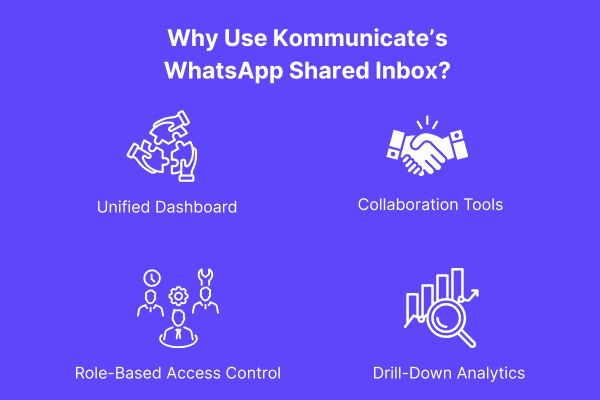
1. Unify All Conversations in One Dashboard
First, every incoming WhatsApp message from your official business number is instantly captured and displayed in the Kommunicate dashboard. Instead of an endless scroll, conversations are organized into actionable views:
- All Conversations: A manager’s bird’s-eye view of every chat happening across all teams.
- Assigned to Me: An agent’s personal queue, showing only the conversations they are responsible for, ensuring focus and clear ownership.
This clean separation immediately eliminates chaos and gives every team member a clear, relevant view of their tasks.
2. Collaborate Silently, Resolve Publicly
Complex queries often require teamwork. Instead of creating messy external groups, Kommunicate facilitates seamless internal collaboration.
With Internal Notes, an agent can @mention a colleague or a manager directly within the chat interface.
For example, an agent can tag a senior technician with, “@Sridhar, can you confirm the specs for this client?” The technician gets a notification and can reply within the same note. This entire back-and-forth is invisible to the customer, who only sees a quick, well-informed final response.
3. Define Roles for Clarity and Control
Kommunicate provides granular control over what each team member can see and do through a system of predefined roles:
- Super Admin / Admin: Has full access to all conversations, analytics, and settings. Admin can’t delete or alter the Super Admin roles.
- Agent: Can access their own assigned chats and, depending on permissions, other chats within their team for context.
- Operator: The most restricted role, with access only to conversations explicitly assigned to them.
This structure ensures data security and allows team members to focus on their responsibilities without being overwhelmed by irrelevant information.
4. Measure Everything with Advanced Analytics
You cannot manage what you don’t measure. The Kommunicate Analytics Dashboard provides real-time insights into your team’s performance against SLAs.
You can track critical metrics filtered by channel, agent, or team, including:
- First Response Time (FRT): See exactly how long customers wait.
- Average Resolution Time: Monitor how quickly your team is closing conversations.
- Conversation Volume: Track how many chats each agent handles and identify your top performers.
This data empowers managers to make informed decisions, conduct effective performance reviews, and continuously optimize the support workflow.
Now that you know how the WhatsApp shared inbox works, let’s discuss how it can improve your customer support operations.
How Can a Shared Inbox Help You Scale Your Customer Support Operations?
Scaling customer support isn’t just about hiring more agents; it’s about making each agent more productive and effective. As your business grows from handling a hundred customers to a hundred thousand, ad-hoc processes collapse under the pressure.
A WhatsApp Shared Inbox provides the foundational structure needed to grow efficiently, acting as a force multiplier for your entire support team.
Here’s how it enables you to scale without sacrificing quality:
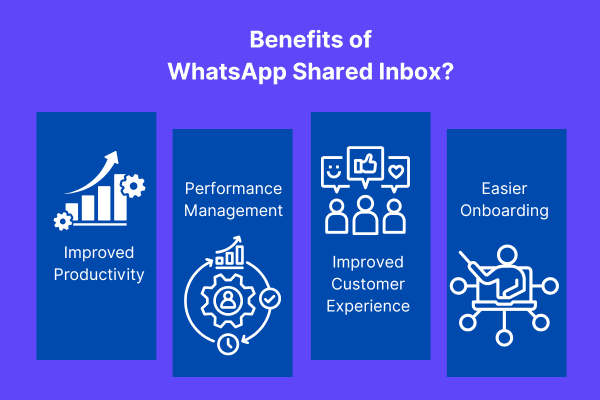
1. Drastically Improve Agent Efficiency
In a traditional setup, agents waste valuable time juggling multiple chats, figuring out who owns which query, and searching for past context. A shared inbox automates the manual work, allowing agents to focus on what they do best: helping customers.
- Before: An agent receives a query, realizes it’s for another department, and manually forwards screenshots.
- With a Shared Inbox: The query is automatically routed to the correct team. With a single click, the agent can see the customer’s history and use pre-approved templates to respond in seconds.
The Scaling Impact: You can handle a significantly higher volume of conversations without a linear increase in headcount. Each agent becomes more powerful, allowing you to serve customers more effectively.
2. Maintain a Consistent Customer Experience at Scale
When you have 200 agents, ensuring every customer receives the same high-quality, on-brand experience is a significant challenge. A shared inbox standardizes the support process.
- Before: The customer experience is a lottery, depending entirely on the individual agent they happen to reach.
- With a Shared Inbox, all agents work from the same platform, accessing the same customer history and knowledge base. They use the same templates and follow the same workflows.
The Scaling Impact: Your brand’s voice and service quality remain consistent, whether you have 10 agents or 1,000. This builds trust and loyalty, which are crucial for long-term growth.
3. Enable Data-Driven Performance Management
You cannot manage a large team effectively if you can’t see what they’re doing. A shared inbox replaces guesswork with complex data.
- Before: Managers must rely on anecdotal evidence or sit on random group chats to gauge performance.
- With a shared inbox, the analytics dashboard provides objective KPIs for every agent and the team. Managers can track First Response Time, resolution rates, and conversation loads to identify top performers and those who need additional coaching.
The Scaling Impact: As your team grows, you can set clear, measurable goals and manage performance effectively. This data-driven approach is essential for maintaining high standards in a large and often remote workforce.
4. Simplify Agent Onboarding and Training
Imagine trying to onboard 200 new agents into a chaotic system. It would be a nightmare. A shared inbox provides a single, intuitive platform that new hires can learn quickly.
- Before: New agents face a steep learning curve, trying to understand dozens of informal processes and who to ask for help.
- With a shared inbox, new hires are trained in one unified system. They have immediate access to customer history, and the internal notes feature provides a clear channel to ask senior agents for help without disrupting workflows.
The Scaling Impact: You can reduce the time-to-productivity for new agents from weeks to days, allowing you to expand your team rapidly and cost-effectively to meet growing demand.
So, a shared inbox helps your customer support operations scale, but accurate scale only comes when you have proper roles configured in your organization. Let’s discuss how you can set up RBAC with your shared inbox.
How Can You Configure Roles-Based Access and Permissions for Customer Support on WhatsApp?
As your support team scales, a flat structure where every agent has the same level of access becomes a liability. It creates confusion, introduces security risks, and prevents agents from focusing on their designated tasks. The solution is to implement a robust Role-Based Access Control (RBAC) system, ensuring that team members only have access to the information and tools they need to perform their jobs effectively.
This isn’t just about security but creating a streamlined, efficient, and accountable operational environment. You can configure roles and permissions within a shared inbox like Kommunicate.
Understanding the Core Roles in a High-Velocity Support Team
A well-structured support operation typically uses a hierarchy of roles, each with specific permissions.
1. The Super Admin (Account Owner)
This is the highest level of access, typically held by one or two key stakeholders. The Super Admin is the architect of the entire system.
Permissions:
- Complete access to all conversations, analytics, and settings.
- Manages billing and subscription details.
- Add, remove, and manage all other users, including Admins.
- Configures high-level integrations with tools like your CRM.
2. The Admin (Manager / Team Lead)
Admins are the operational commanders responsible for the day-to-day management of the support team. They act as the control tower for all support activities.
Permissions:
- View all conversations across the entire team to monitor quality and handle escalations.
- Access the complete analytics dashboard to track team performance and SLAs.
- Add, remove, and manage Agents and Operators.
- Configure conversation routing rules and automation workflows.
- Typically, you cannot access billing or change the account subscription.
3. The Agent (Team Member)
Agents are the frontline pilots, handling most customer interactions. Their view is tailored for focus and efficiency.
Permissions:
- View and respond to conversations assigned directly to them or their team.
- Use internal notes to collaborate with colleagues.
- Access the knowledge base and pre-approved templates.
- View their own individual performance metrics.
- Cannot see company-wide analytics or access administrative settings.
4. The Operator (Restricted Agent)
This is a more limited role for specific functions or external team members where data access must be tightly controlled.
Permissions:
- Can only view and respond to conversations explicitly assigned to them.
- Cannot see conversations assigned to any other team member, even within the same team.
- This is the ideal role for maintaining strict data privacy and focus.
Advanced Configuration: Setting Up Team-Based Permissions
For larger organizations with multiple departments using the same inbox, you can go a step further by creating teams. This allows you to build virtual walls between different functions.
For example, you can create a “Sales Team” and an “Onboarding Team.” By configuring team-based permissions, you ensure that:
- A “Sales” agent can only see and be assigned conversations relevant to sales.
- They cannot view sensitive “Onboarding” conversations, and vice versa.
This level of granular control is critical for maintaining data confidentiality and ensuring that agents are only presented with information that is relevant to their role, which is essential for scaling a multi-departmental support operation.
A Simple 3-Step Guide to Configuration
1. Map Your Team Structure: Before you start, outline your organizational chart. Define your teams (Sales, Support, etc.) and their hierarchy of roles.
2. Assign Roles to Users: Navigate to your shared inbox platform’s “Team Settings” section. As you invite new members, assign them one of the predefined roles (Admin, Agent, Operator) from a dropdown menu.
3. Create Teams and Link Routing Rules: Group users into their respective teams. Then, create routing rules that automatically assign incoming conversations to the appropriate team based on keywords, customer history, or other criteria.
How Can You Manage Queues and SLAs for WhatsApp Customer Service?
WhatsApp is an “instant” channel. Unlike email, where customers might tolerate a 24-hour wait, the expectation is for a near-immediate response on WhatsApp. This high-velocity environment requires a structured approach to managing incoming messages (queues) and performance standards (Service Level Agreements or SLAs). Simply telling your team to respond “as soon as possible” is a recipe for inconsistency and customer frustration.
Here’s how to bring order and predictability to your WhatsApp support operations.
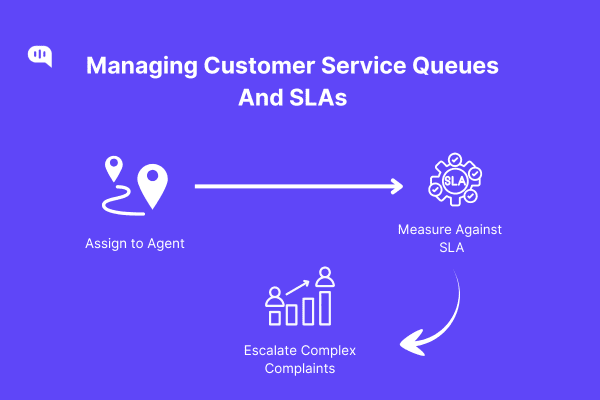
1. Improve the Queue with Automated Routing
Without a system, all incoming messages create a single, chaotic flood. A shared inbox organizes this into manageable queues, which are essentially ordered lines of conversations waiting to be handled. The primary goal is to keep these queues short and moving quickly.
This is achieved through intelligent queue management tactics:
- Automated Routing: This is your first line of defense against queue build-up. Instead of letting messages pile up in an “unassigned” folder, you can set up rules to distribute them instantly:
- Round-Robin: Assigns conversations to available agents in a circular order, ensuring an even distribution of work.
- Load-Based: Assigns new conversations to the agent with the fewest currently open chats, preventing any single team member from becoming a bottleneck.
- Skill-Based: Creates specialized queues by directly routing messages with keywords like “refund” or “payment error” to a specialized finance team.
- Real-Time Queue Monitoring: As a manager, your dashboard is your mission control. You can monitor the health of your queues in real-time, watching the number of open and unassigned conversations. A sudden spike might indicate a product issue or a need to reallocate agents to the WhatsApp channel.
2. Enforce a Strict SLA
A Service Level Agreement (SLA) is a formal commitment to your customers about the level of service they can expect. For WhatsApp, SLAs are primarily time-based and are crucial for managing customer expectations. According to a 2024 Customer Service Trends Report by HubSpot, speed is a top driver of customer satisfaction.
Here are the two most critical SLA metrics for WhatsApp:
- First Response Time (FRT): This measures when a customer sends their first message to when an agent sends the first reply. This is the most critical metric for a conversational channel like WhatsApp. While industry benchmarks vary, many high-performing teams aim for an FRT of under 5 minutes. A slow first response immediately fails the customer’s “live” conversation expectation.
- Average Resolution Time (ART): This measures the total time from when a conversation is initiated until it is marked as ‘resolved’. This metric tracks the overall efficiency of your team in solving customer problems, not just responding to them.
3. Monitor and Escalate Difficult TIckets
Defining SLAs is only half the battle; enforcing them requires an active, data-driven workflow.
1. Set Your Targets: In your shared inbox platform, you can define your SLA targets (e.g., FRT = 5 minutes). The system will then begin tracking every conversation against this goal.
2. Monitor the Dashboard: Your analytics dashboard is your SLA watchdog. It will show you your team’s performance against your targets over time. You can see your average FRT and your success rate in meeting the SLA, and you can identify agents who may be struggling.
3. Manage SLA Breaches: A sound system will help you identify conversations at risk of breaching their SLA. Managers can sort the conversation queue by “Longest Wait Time” to instantly see which customers urgently need attention. This allows them to:
- Manually Escalate: Reassign an at-risk conversation to a senior team member or a more available agent.
- Proactively Step In: A manager can see a conversation that is becoming complex and use the internal notes feature to offer guidance to the agent before the SLA is breached.
Combining intelligent queues with clearly defined and monitored SLAs transforms WhatsApp from a reactive, unpredictable channel into a proactive, high-performance customer service engine.
Once you understand WhatsApp’s unique circumstances, you can start measuring the effectiveness of your support team on the channel. Let’s discuss the metrics and KPIs you should measure to track this performance.
How do you Track Customer Service Performance on WhatsApp?
You must move beyond gut feelings and anecdotes to build a high-velocity support operation. Tracking performance with concrete data is the only way to understand what’s working, identify areas for improvement, and demonstrate the value of your support team. A shared inbox with a built-in analytics suite transforms your WhatsApp channel from a black box into a source of actionable insights.
Here’s how you can effectively track and manage performance on WhatsApp:
Key Metrics to Monitor
Effective performance tracking isn’t just about speed and balancing efficiency with quality. A balanced scorecard approach ensures you’re not sacrificing customer satisfaction for the sake of fast, incomplete answers.
Quantitative Metrics
These metrics tell you how effectively your team is managing its workload.
- First Response Time (FRT): As discussed, this is the most critical metric for WhatsApp. Consistently tracking your average FRT helps you understand whether you meet customer expectations for an “instant” channel.
- Average Resolution Time (ART): This measures the entire lifecycle of a conversation. A rising ART can be an early warning sign of emerging product issues, gaps in your knowledge base, or agents who need more training.
- Conversations Handled per Agent: This helps you understand team capacity and manage workloads. It allows you to balance assignments fairly and identify your most productive agents.
- Messages per Resolution: This metric can indicate efficiency. Suppose an agent consistently resolves issues with fewer messages. In that case, it might show they communicate more clearly and effectively than an agent who requires a lengthy back-and-forth for the same problem.
Qualitative Metrics
These metrics tell you how well your team solves customer problems and creates positive experiences.
- Customer Satisfaction (CSAT): This is the ultimate measure of quality. Using an automation rule, you can send a quick CSAT survey (e.g., “How would you rate your support experience?”) via WhatsApp when a conversation is marked as resolved. Tracking your CSAT score over time is the best way to measure the direct impact of your support efforts on customer happiness.
- First Contact Resolution (FCR): An FCR occurs when an agent solves a customer’s issue in a single, continuous conversation, without needing the customer to write back later. According to McKinsey, improving FCR can significantly boost customer satisfaction. Tracking FCR helps you identify complex issues and measure your team’s ability to provide complete and accurate solutions the first time.
How to Improve Customer Service With These Metrics?
Your analytics dashboard provides the tools to turn these metrics into meaningful action.
- Real-Time Dashboards & Leaderboards: Managers can monitor key metrics in real-time to make immediate operational adjustments. If the queue of unassigned chats is growing and the FRT spikes, a manager knows to pull agents from other tasks to focus on the WhatsApp queue. Leaderboards can foster healthy competition and recognize top performers.
- Historical Reports for Trend Analysis: By looking at data over weeks or months, you can identify peak hours and days, allowing you to create more efficient staffing schedules. You can also spot long-term trends in customer issues, providing valuable feedback to your product and marketing teams.
- Agent-Level Drill-Downs for Coaching: This is where data becomes a powerful coaching tool. A manager can filter the dashboard to view a single agent’s performance. If an agent has a high ART, the manager can review their chat transcripts to understand why. This allows for particular, constructive feedback that helps agents improve.
For example, a manager might see an agent’s CSAT score dip. By reviewing their chats, they might find the agent is technically correct but lacks an empathetic tone. This leads to a focused coaching session on soft skills, backed by real-world examples from the agent’s work.
By combining quantitative metrics with qualitative review, you create a holistic performance management system that enforces accountability and fosters professional growth and continuous improvement for your entire team.
Ready to improve your support team’s performance? Let’s start by configuring your Kommunicate account for WhatsApp support.
How Can You Use Kommunicate for WhatsApp Customer Service?
Moving from the theoretical benefits of a shared inbox to a practical implementation is the final, crucial step. Kommunicate is designed to be the all-in-one platform that brings these concepts to life, providing a powerful yet intuitive command center for your entire WhatsApp support operation. It’s not just a tool; it’s a complete workflow designed for high-velocity teams.
Here’s a practical look at leveraging Kommunicate to transform your WhatsApp customer service from day one.
1. Activate Your Shared Inbox with a Simple Integration
The first step is connecting your official WhatsApp Business number to the Kommunicate platform. You can do this by following this quick video tutorial:
How to Integrate WhatsApp Business Cloud API with Kommunicate’s AI Chatbot Platform?
Once integrated, your team will have a single source of truth for every WhatsApp conversation.
2. Empower Your Agents with Collaborative Tools
From the moment they log in, your agents are equipped to handle conversations with speed and precision:
- The “Assigned to Me” View: Each agent gets a clean, focused queue of their assigned conversations, eliminating the noise and confusion of a shared inbox flood.
- Internal Notes for Collaboration: When agents need help, they can simply @mention a manager or a specialist in a private note. The right expert is looped in instantly, without the customer ever seeing the internal discussion.
- Knowledge Base Integration: For frequently asked questions, agents can pull answers directly from your integrated knowledge base, ensuring customers receive fast, consistent, and pre-approved information.
3. Monitor, Coach, and Optimize with Data
As a manager, your dashboard is your command center for continuous improvement:
- Real-Time Monitoring: Keep an eye on the number of open conversations and your team’s real-time FRT. You can instantly see if a queue is backing up and reassign agents to handle the spike.
- Agent Performance Reviews: Use the agent-level reports to conduct data-driven coaching sessions. You can review chat transcripts, analyze an agent’s CSAT scores, and provide specific, constructive feedback backed by objective data.
- Identify Broader Trends: Use the Insights feature to find patterns in customer queries. A sudden increase in questions about a specific feature can provide valuable, early feedback for your product team.
With this workflow, Kommunicate helps you move beyond simply managing WhatsApp messages to strategically orchestrating a high-velocity customer service operation built for scale.
Finally, let’s set you up with some WhatsApp support playbooks that we personally used to scale.
What are Some Playbooks You Can Use for WhatsApp Customer Service?
Having a powerful tool like a shared inbox is the first step. The next step is implementing standardized workflows, or “playbooks,” to handle common scenarios quickly and consistently. These playbooks turn your support team from a reactive firefighting unit into a proactive, strategic operation.
Here are four essential playbooks you can implement using Kommunicate to manage everyday situations on WhatsApp.
Playbook 1: The “New Lead Capture & Qualification” Playbook
Situation: A potential customer lands on your website and sends a message to your WhatsApp number with a pre-sales question like, “How much does your enterprise plan cost?”
The Play:
1. Instant Automated Greeting: An automation rule fires an immediate welcome message. For example: “Thanks for contacting [Your Company]! To connect you with the right person, are you an existing customer or new here?”
2. Smart Routing to Sales: Based on the “new here” response, the conversation is automatically tagged as a New Lead and routed directly to the Sales Team queue.
3. Sales Agent Engagement: A sales agent receives the conversation. They can use pre-approved message templates for common pricing questions and see any available CRM data about the contact directly in their dashboard.
4. Seamless Collaboration: If a custom quote is needed, the agent uses an internal note to @mention their manager for approval. The entire process is invisible to the lead.
5. Sync to CRM: Once the conversation is resolved (or the lead is qualified), the contact details and a chat summary are automatically pushed to your CRM, creating a new, enriched lead record.
Outcome: A fast, professional experience that efficiently captures and qualifies inbound leads, increasing your conversion rate from WhatsApp inquiries.
Playbook 2: The “Instant Answer for Common Queries” Playbook
Situation: A customer asks frequently questions such as “What are your business hours?” or “What is your return policy?”
The Play:
1. Keyword Detection: A chatbot or automation rule scans the incoming message for keywords like “hours,” “address,” or “return.”
2. Automated Response: The system instantly replies with a pre-written answer pulled from your integrated knowledge base.
3. Human Handoff Option: The automated message concludes with a prompt like, “Did this answer your question? If you’d like to speak to someone, just type ‘agent’.”
4. Seamless Transfer: If the customer requests a human, the conversation— and the whole chat history— are automatically transferred to the appropriate agent queue.
Outcome: Much of your support volume is deflected, allowing your agents to focus on high-value, complex problems. Customers get instant answers 24/7.
Playbook 3: The “Complex Issue Triage & Escalation” Playbook
Situation: A customer reports a technical issue that the frontline (L1) support agent cannot solve independently.
The Play:
1. Initial Diagnosis: The L1 agent uses a message template to run through a standard diagnostic checklist with the customer, gathering all necessary information upfront.
2. Internal Escalation Note: The agent uses an internal note to @mention an L2 technical specialist, providing a concise summary. For example: “@Sanjana, the customer reports error 502 on the payment page. Have run diagnostics A, B, and C. Can you please advise?”
3. Seamless Handoff: The L2 specialist can either provide the solution in the internal note for the L1 agent to relay, or the entire conversation can be reassigned to the L2 agent with a single click. The L2 agent has the full context and history, so the customer never has to repeat themselves.
4. Close the Loop: After resolving the issue, the L2 agent adds a final internal note detailing the solution, which helps build the internal knowledge base for future incidents.
Outcome: Faster, more accurate resolutions for complex issues, improved cross-team collaboration, and a better experience for frustrated customers.
Playbook 4: The “Proactive Outage Notification” Playbook
Situation: Your service is experiencing a temporary technical issue, and you want to proactively inform customers to prevent a flood of inbound support tickets.
The Play:
1. Create an Audience Segment: Quickly build a list of potentially affected customers (e.g., users on a specific plan or in a particular region).
2. Broadcast a Templated Message: Send a pre-approved WhatsApp message template to the segmented list using the campaign feature. For example: “Hi [Name], we’re aware of a temporary issue affecting [Feature]. Our team is working on a fix, and we’ll update you shortly. We apologize for the disruption.”
3. Manage Inbound Replies: Configure a rule so that replies to this broadcast are automatically routed to a dedicated Outage Support queue, staffed by agents who are fully briefed on the situation.
Outcome: Dramatically reduces inbound support volume during a critical incident and builds customer trust through proactive and transparent communication.
We’ve used these playbooks to improve our support performance over the last few years, and they’ve worked well. These playbooks target specific instances that your support team faces every day and simplify the process, making your entire support workflow seamless.
Conclusion
WhatsApp can be your fastest, most scalable support channel—but only when it’s run from a shared inbox with clear ownership, smart routing, role-based access, and SLA discipline. Moving away from ad-hoc chats and groups gives you a single source of truth for every conversation, predictable first-response times, and measurable improvements in CSAT and resolution speed.
With Kommunicate, you get the full operating system for WhatsApp support: one dashboard for agents and managers, internal notes for silent collaboration, analytics for coaching and planning, and playbooks that turn common scenarios into repeatable wins. The path forward is simple: connect your number, define roles, set queues and SLAs, enable your playbooks, and keep optimizing with the data you see daily.
Ready to turn WhatsApp into a speed-first support engine? Book a demo or start a trial with Kommunicate, and ship your new workflow!
FAQ: WhatsApp Shared Inbox, Routing, Roles & SLAs
1. Should We Use WhatsApp Groups to Provide Customer Support?
Short answer: No. Groups create noise, leak context, and offer no accountability, SLAs, or analytics. If an agent exits the company, so does the history on their device. A shared inbox keeps every chat as a trackable ticket with an owner, timestamps, internal notes (invisible to customers), and audit-ready history. If you must collaborate, use internal notes and reassignments—never add customers to internal groups.
2. What exactly is a WhatsApp Shared Inbox?
It centralizes all customer WhatsApp messages into one dashboard. Each conversation becomes a ticket with status, owner, and timeline, enabling assignment, routing, collaboration, and reporting across teams.
3. How is this different from using multiple phones/SIMs or the basic WhatsApp Business app?
Phones and basic apps fragment context and make manager oversight impossible. A shared inbox provides centralized visibility, RBAC, SLA tracking, and analytics—critical for multi-agent or multi-team operations.
4. How do routing and assignment work?
You can apply round-robin, load-based, or skill-based rules. Messages land in the right team’s queue instantly, reducing wait times and preventing pile-ups in “Unassigned.”
5. Which SLAs should we set for WhatsApp?
Start with First Response Time (FRT) and Average Resolution Time (ART). Many teams target sub-5-minute FRT for WhatsApp. Track breach risk in real time and escalate or reassign before timers expire.
6. What metrics matter most for WhatsApp support?
Track FRT, ART, Conversations per Agent, Messages per Resolution, CSAT, and First Contact Resolution (FCR). Use leaderboards for coaching and historical reports for staffing and trend analysis.
7. Can we mix automation and human support?
Yes. Use a bot/AI for instant answers and triage (hours, policies, order status), then offer a one-tap handoff to an agent with full conversation context preserved in the same thread.
8. How do roles and permissions (RBAC) keep data safe?
Define Super Admin/Admin/Agent/Operator roles and team scopes (e.g., Sales vs. Support). Agents only see what they need; managers see everything. This improves focus, privacy, and compliance.
9. What about the 24-hour customer-service window and templates?
Within 24 hours of the user’s last message, you can reply freely. Outside the window, use pre-approved template messages for re-engagement (e.g., updates, notifications). A shared inbox helps enforce these rules.
10. Can we integrate with our CRM and ticketing tools?
Yes. Sync contacts and conversation summaries to Salesforce/HubSpot, escalate complex cases to Zendesk/Jira, and pull approved answers from your knowledge base—without leaving the chat.
11. How do we roll this out without disruption?
Run a two-week pilot:
1. Connect your WhatsApp number;
2. Set up roles, queues, and SLA targets;
3. Enable two playbooks (e.g., “Instant Answers” and “Complex Triage”);
4. Coach weekly using FRT/CSAT/FCR;
5. Expand to more teams after you hit targets.
12. Can we handle multiple brands or numbers?
Yes. Create separate inbox views/teams per brand or number, with routing rules and permissions to keep data clean and access scoped.
13. Does this support proactive outreach (outage notices, reminders)?
Yes—use template campaigns to notify affected users, and auto-route replies to a dedicated queue so specialized agents can respond fast.
14. What’s the ROI we should expect?
Teams typically see faster FRT, higher FCR, and lower cost per resolution as deflection increases and rework drops. Centralized analytics surface coaching opportunities that compound gains over time.

Devashish Mamgain is the CEO & Co-Founder of Kommunicate, with 15+ years of experience in building exceptional AI and chat-based products. He believes the future is human and bot working together and complementing each other.