Updated on June 19, 2026
TL;DR
WhatsApp AI automation lets insurance companies handle policy inquiries, claims filing, document collection, and renewal reminders automatically on a channel customers already use.
To set it up, you need a verified Facebook Business Manager account, a dedicated phone number, access to the WhatsApp Business API through Meta’s developer portal, and a no-code chatbot builder like Kommunicate.
From there, you build conversation flows for your most common support interactions, train your bot on your policy documents, test end-to-end, and go live. A focused team can complete the full setup in three to six weeks.
The payoff: up to 80% of routine inquiries resolved without human involvement, cost per interaction dropping from $8–$15 to under $1, and policyholders who get answers at 2 AM without waiting on hold.
A policyholder files a claim on a Sunday night. Their adjuster is unreachable. Their insurer’s portal is clunky. Their hold time the next morning? 22 minutes.
This is the default experience for millions of insurance customers today. And it costs insurers a lot more than they realize. It causes:
- Churn
- Complaints
- Dragged-out claims cycles
WhatsApp changes this calculus. With over 175 million users already messaging businesses daily on the platform, and AI-powered chatbots now capable of resolving up to 80% of routine insurance inquiries without any human involvement, WhatsApp automation is fast becoming the backbone of modern insurance customer support. For many insurers, the move begins with migrating from IVR to WhatsApp
This guide walks you through exactly how to set it up and then shows you why it matters, where it fits, and how to roll it out without disruption. We’re going to cover:
- How to build a WhatsApp chatbot for insurance support?
- Benefits of WhatsApp automation for insurance
- Implementation plan
- Conclusion
- Frequently asked questions
How to build a WhatsApp chatbot for insurance support (step-by-step)
Pre-Requisites
- A verified Meta Business Suite account. Everything on WhatsApp’s business side runs through Meta. If you run Facebook or Instagram ads for your company, you likely already have one. If not, set one up at business.facebook.com.
- A dedicated phone number. This will be your official WhatsApp business number. It must not already be registered on WhatsApp or WhatsApp Business. It can be a mobile or landline number, as long as it can receive a verification call or SMS from Meta during setup.
- Access to the WhatsApp Business API. The standard WhatsApp Business app does not support chatbots. Automation at scale requires a WhatsApp Business API account, available through Meta’s developer platform. The steps below cover this in full.
- A no-code chatbot builder. Once your API is live, you need a tool to build and manage your chatbot. Platforms like Kommunicate let you design conversation flows, train your bot on your own documentation, and connect it to WhatsApp. You can sign up for Kommunicate here.
Now, let’s build a WhatsApp AI chatbot for the insurance industry.
Step 1: Get access to the WhatsApp Business API
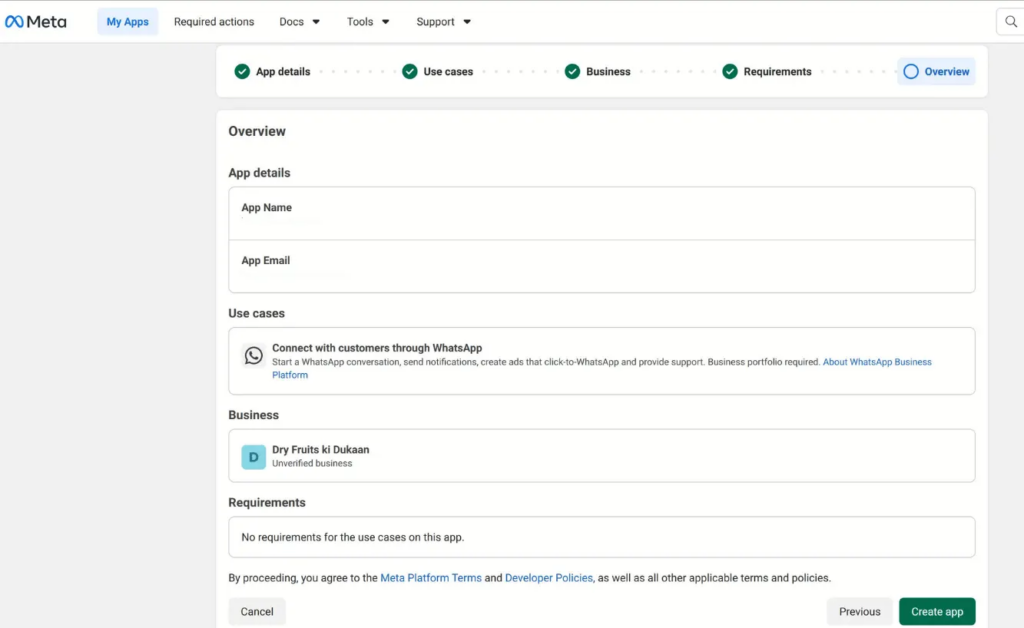
- Go to developers.facebook.com and log in with your Facebook Business Manager account. Click “Create App,” select “Business” as the app type, and give it a name. Once the app is created, find the WhatsApp product in the Add Products section and click “Set Up.”
- You will then be asked to connect your Facebook Business Manager account and set up a webhook. The webhook is how WhatsApp communicates with your chatbot.
You will need a webhook URL from your chatbot platform at this stage (most platforms provide one). - Next, add your dedicated phone number under the “Phone Numbers” section. Meta will send a verification code via call or SMS to confirm ownership. Once verified, your number is active and ready to connect.
- You are now in WhatsApp’s test environment. To go live with real customers, you need to submit your business for verification through Facebook Business Manager. This typically involves submitting business documents and takes a few days to process.
Step 2: Build your WhatsApp AI chatbot for insurance support
- Log in to Kommunicate, and go to Agent integrations.
- Click on Create AI agent.
- Select Kompose on this step (you can also choose Gemini, Anthropic, or OpenAI in this step if you want to use a particular AI model)
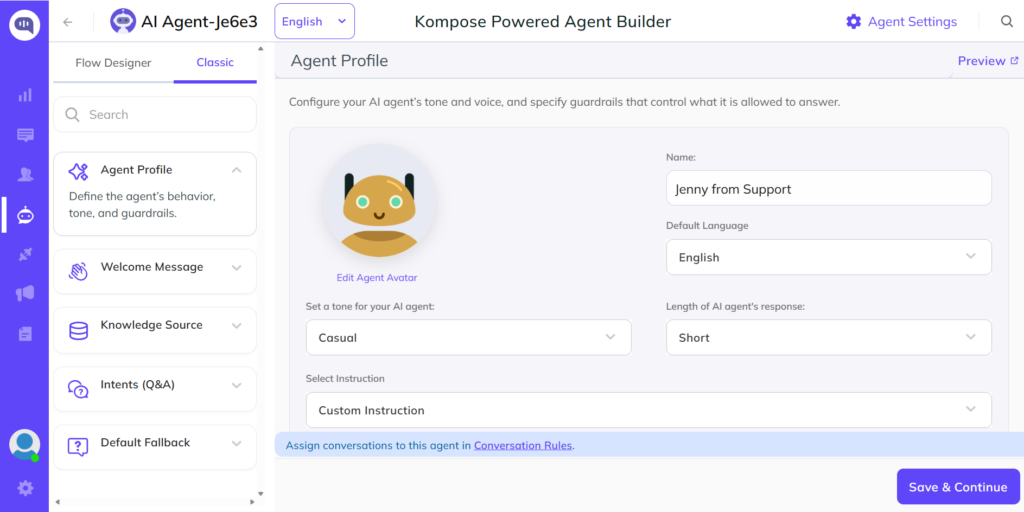
- In the Agent Profile section, you can choose a name for your AI agent, add parameters for how your agent will talk, and add Custom instructions that will help the agent perform better. Once you’re done, select Save & Continue.
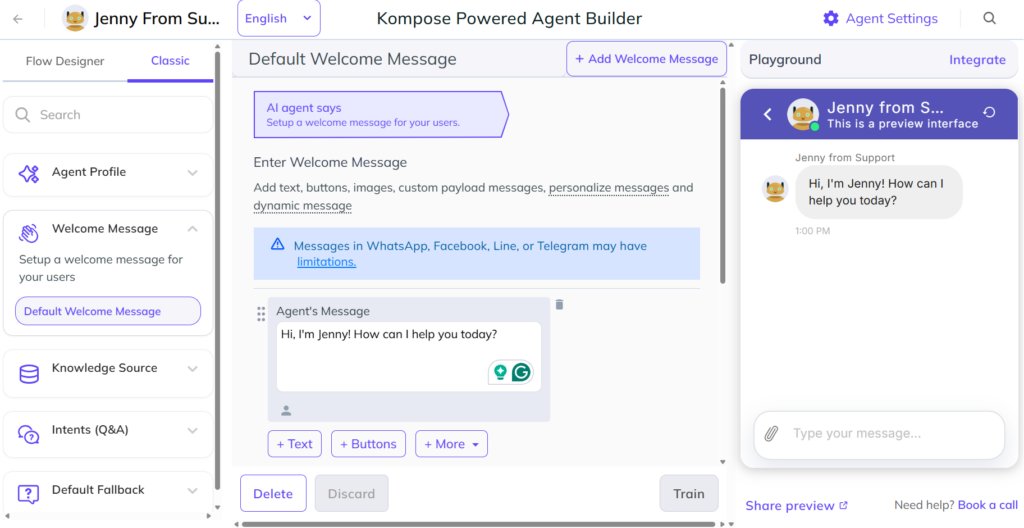
- In the Welcome Message section, you can choose how your AI agent will greet the customer on WhatsApp.
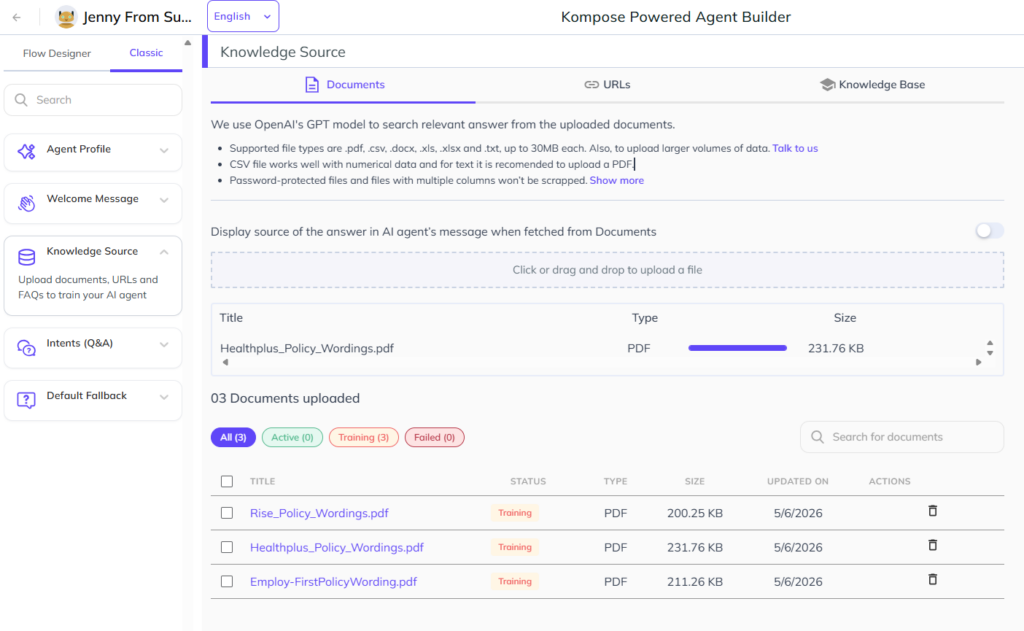
- In the Knowledge Source section, you can add documents, URLs, or knowledge bases that tell your AI agent about your policies around support. Here, we’ve used policy documents from Niva Bupa (one of India’s largest insurance providers).
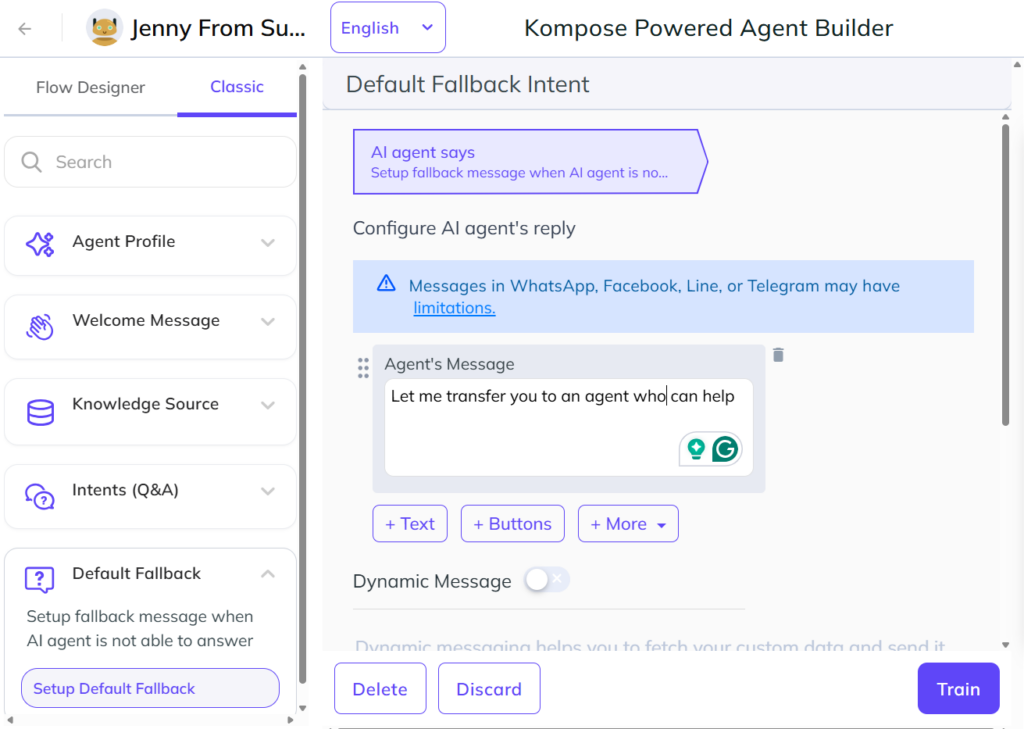
- Finally, build an off-ramp for when an AI agent fails. Kommunicate automatically creates routing rules that escalate complex and business-sensitive queries to human agents. You can set up the message that appears during the transfer in the Default Fallback section.
- That’s it, you have an AI agent that can answer basic questions about your policies.
Now, on the next step, we’re going to connect this AI agent to WhatsApp.
Step 3: Set up the webhook
The webhook tells Meta where to send incoming WhatsApp messages so your Kommunicate chatbot can receive and respond to them.
- Go to WhatsApp > Quickstart in Meta for Developers. Then click on Configure Webhooks.
- Click on Edit and enter the following details:
Callback URL: https://omni-channel.kommunicate.io/whatsapp/cloud-api/webhook
Access Token: kommunicate_private_access_token
- Click Verify and Save. Then, under Webhook Fields, click Manage.
- In the modal, select Messages and click Done.
Your Meta webhook setup is now ready, and incoming WhatsApp messages can be routed to Kommunicate.
Step 4: Connect the WhatsApp automation chatbot to WhatsApp
- Go to integrations, and click on WhatsApp.
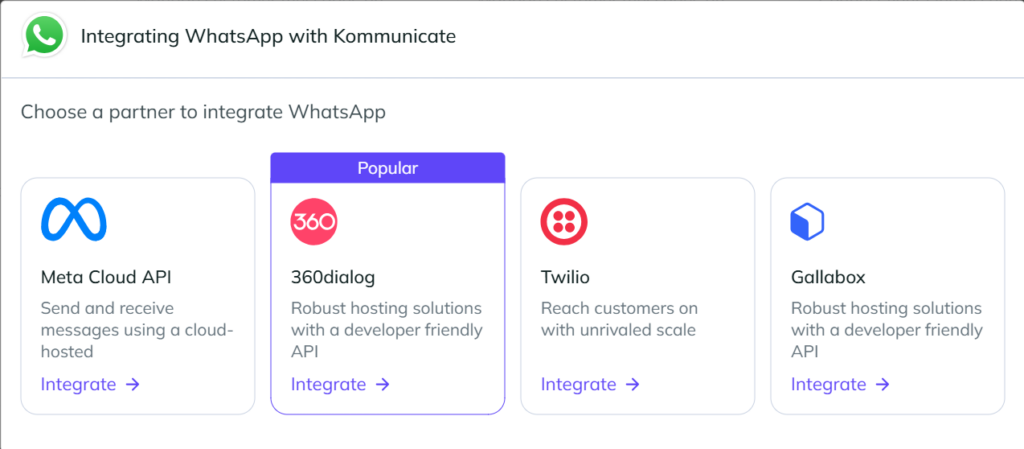
- Here you can choose between different ways to connect to WhatsApp. Our options include: Meta Cloud AI, 360Dialog, Twilio, and Gallabox. We’re going to choose the Meta Cloud API for this.
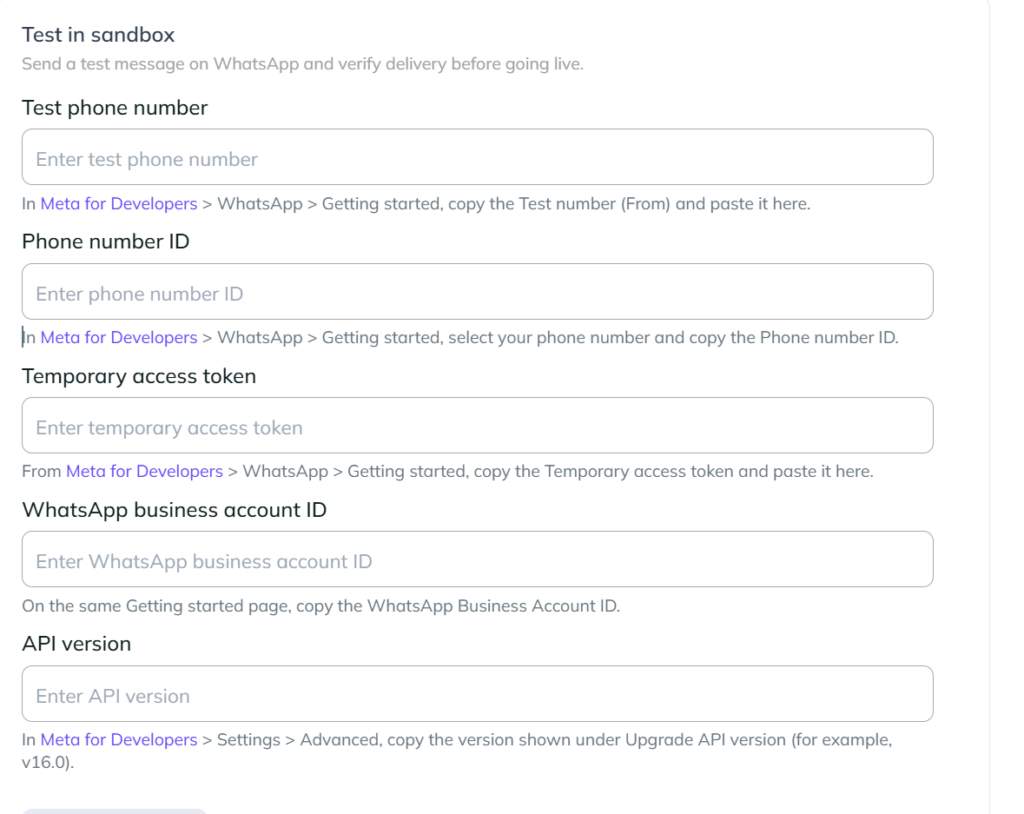
- Here you need to fill in some information. We’ve created a table that you can use to find each of these parameters.
| Field in Form | Where to Find It |
|---|---|
| Test phone number | Meta for Developers → WhatsApp → Getting started → Test number / From |
| Phone number ID | Meta for Developers → WhatsApp → Getting started → Select phone number → Phone number ID |
| Temporary access token | Meta for Developers → WhatsApp → Getting started |
| WhatsApp business account ID | Meta for Developers → WhatsApp → Getting started |
| API version | Meta for Developers → Settings → Advanced → Upgrade API version |
- Click on Setup Sandbox.
We’re live, but before we confirm everything, let’s test if our messages are getting through to WhatsApp.
Step 5: Test and review before going live
Before routing any real customers to your bot, test every flow end-to-end. Send messages through your WhatsApp number as a customer would.
- Review the fallback behavior carefully. Any time the bot cannot match a message to a known flow, it should respond with a friendly acknowledgment and offer to connect the customer with a human agent rather than going silent.
- Once testing is complete, update your business’s WhatsApp number across all customer touchpoints, and you are live.
Now you have a step-by-step guide for setting up an insurance support WhatsApp AI chatbot. Before you move on, let’s talk about why our enterprise insurance customers are using WhatsApp for customer support.
Benefits of WhatsApp automation for insurance
We’ve talked about how conversational AI can help insurance carriers provide support at scale. But, there are additional benefits that come as add-ons when you bring that AI onto WhatsApp:
1. Dramatically lower cost per interaction
The numbers here are stark. A single insurance customer service interaction handled by phone costs between $8 and $15. An AI-powered chatbot handles a similar query for $0.50 to $0.70.
For high-volume insurers fielding thousands of routine queries each day, this difference compounds quickly. Industry projections estimate WhatsApp-driven automation could save the insurance sector billions annually by reducing dependence on call center infrastructure.
2. Faster claims resolution
Routine claims inquiries make up a significant share of inbound support volume and do not require human judgment to resolve. Automating these touchpoints frees adjusters from complex decisions while keeping policyholders informed throughout the process.
AI-assisted claims handling has been linked to meaningful reductions in overall resolution time across the industry.
3. Higher customer satisfaction through speed and convenience
WhatsApp messages achieve open rates of around 98%, far exceeding email. This is because customers do not need to download anything, create an account, or navigate a portal when using WhatsApp.
Meeting policyholders on a channel they already use and responding instantly and consistently produces better satisfaction scores than traditional support channels.
4. Proactive communication, not just reactive support
WhatsApp automation is not just about responding to inbound queries. It enables insurers to reach out proactively for renewal reminders before a policy lapses, payment confirmations, claim status updates when milestones are reached, and post-claim satisfaction surveys.
This proactive posture reduces inbound query volume and improves retention.
These benefits compound when you can deploy WhatsApp into multiple policyholder journeys. We cover the use cases of these AI chatbots in detail in our guide to insurance AI chatbots.
Finally, let’s discuss how to implement an insurance WhatsApp AI chatbot in production. While the core integration is simple, you’ll need a plan for pilots and preparation.
Implementation plan
The core idea for the implementation is as follows:
| Phase | Timeline | Key Actions | What to Focus On |
|---|---|---|---|
| Phase 1 – Foundation | Weeks 1–3 | Audit current inbound support volume. Pull data on the top 20–30 query types, including what customers ask, frequency, and whether each query needs human judgment or follows a predictable pattern. | Decide what the WhatsApp chatbot should handle and what it should escalate. |
| Set up WhatsApp Business API access. Identify your chatbot platform, connect API credentials, and run a basic end-to-end test flow. | Validate the technical setup before building customer-facing workflows. | ||
| Define fallback and escalation logic upfront. Decide which queries always go to human agents, such as complex claims disputes, complaints, and sensitive medical or legal situations. | Ensure graceful handoff with full conversation history so customers do not need to repeat themselves. | ||
| Phase 2 – Build and Train | Weeks 4–6 | Build core conversation flows: welcome menu, claims FNOL, policy inquiries, payment and renewal, document collection, and human handoff. | Start narrow. It is better to launch five strong flows than fifteen weak ones. |
| Train the bot on actual policy documents, FAQ content, and historical chat transcripts if available. | Use insurance-specific training data to improve accuracy and usefulness. | ||
| Run internal testing with the customer service team. | Surface edge cases and failure modes that standard testing may miss. | ||
| Phase 3 – Pilot Launch | Weeks 7–8 | Soft-launch to a limited audience, such as one product line, one geography, or opt-in customers. | Reduce launch risk before expanding to all customers. |
| Monitor containment rate, escalation volume, average handling time, and customer satisfaction scores. | Measure whether the bot is resolving queries safely and effectively. | ||
| Iterate during the first two weeks of live traffic. | Fix flow gaps, training issues, and unexpected customer behavior quickly. | ||
| Phase 4 – Full Rollout and Optimization | Week 9 onward | Expand to the full customer base once pilot metrics are stable. | Scale only after the pilot shows consistent performance. |
| Update all customer-facing touchpoints with the WhatsApp number. | Make the new support channel easy for customers to find. | ||
| Brief human agents on the handoff process and the context they will receive. | Ensure agents can continue conversations without losing context. | ||
| Set up a regular review cadence, weekly in the early months. | Analyze bot performance, identify new query types to automate, and retrain the bot as products and policies evolve. |
While other parts of this implementation cycle can be fast-tracked, we recommend spending at least 2 weeks in the pilot phase to resolve all errors before launch.
Conclusion
WhatsApp automation is not a technology experiment for forward-thinking insurers. It is a practical response to what customers already expect: instant answers, on a channel they already use, at any hour of the day.
The setup process, while it involves a few layers, is manageable for any insurer willing to invest a few weeks of structured effort. The returns on the other side are real: lower cost per interaction, faster claims resolution, fewer lapsed policies, and policyholders who feel supported rather than stuck on hold.
Insurers that automate well do not just save money. They build the kind of customer experience that drives loyalty in an industry where switching costs are low, and trust is everything.
If you want to implement WhatsApp automation into your insurance business, feel free to book a demo with us.
Frequently asked questions
No. Platforms like Kommunicate offer no-code chatbot builders. You design conversation flows visually, train your bot by uploading documents, and connect everything to WhatsApp through a simple integration process. A developer is not required for standard insurance support deployments.
Yes. WhatsApp Business API uses end-to-end encryption for all messages, which means content is protected in transit. That said, insurers operating in regulated markets should also ensure their chatbot platform and CRM integrations comply with relevant data protection regulations and obtain appropriate customer consent for WhatsApp communications.
Both. A well-configured WhatsApp chatbot can handle the full First Notice of Loss process and push that information directly into your claims management system. The customer does not need to use a portal or call a number.
The bot should detect that it cannot resolve the query and transfer the conversation to a live agent. Critically, the transfer should include the full chat history so the agent has complete context and the customer does not have to repeat themselves.
Basic setup typically takes three to six weeks for a focused team. A soft launch pilot can follow in week seven or eight. Full deployment depends on the complexity of your product range and how many flows you want to automate from the start.
No. The chatbot’s role is to handle the high-volume, routine queries that do not require human judgment. This frees your agents to focus on complex claims, disputes, sensitive conversations, and situations where empathy and expertise genuinely matter. Human handoff is built into every well-designed insurance chatbot.
The most useful metrics for insurance chatbot performance are containment rate (percentage of queries resolved without human escalation), first response time, average handling time, customer satisfaction score (CSAT), and escalation rate. Over time, also track the ratio of automated claims FNOL submissions to total FNOL volume which is a strong leading indicator of efficiency gains.

Adarsh Kumar is the CTO & Co-Founder at Kommunicate. As a seasoned technologist, he brings over 14 years of experience in software development, artificial intelligence, and machine learning to his role. His expertise in building scalable and robust tech solutions has been instrumental in the company’s growth and success.